> ## Documentation Index
> Fetch the complete documentation index at: https://docs.together.ai/llms.txt
> Use this file to discover all available pages before exploring further.
# Start a rollout
> Shift traffic to a new deployment on the same endpoint.
export const ConsoleButton = ({href, children}) => {
return
{children}
;
};
A rollout moves traffic from one deployment to another under the same endpoint, without changing the endpoint URL. Traffic shifts to the new deployment (the **target**) while the old one (the **source**) drains. For example:
```bash theme={null}
tg beta endpoints rollout dep_target456 \
--source dep_source123 \
--rolling
```
The CLI examples on this page use these placeholders, which you should replace with your own endpoint/deployment IDs:
* Endpoint: `ep_abc123`
* Source deployment: `dep_source123`
* Target deployment: `dep_target456`
## When to use rollouts
Use a rollout instead of editing the [traffic split](/docs/dedicated-endpoints/route-traffic) by hand when you're migrating a deployment on live traffic. Rollouts are especially useful when you want to:
* **Ship a new model version or engine config:** Canary rollouts shift traffic gradually from the old deployment to the new one, allowing you to monitor the new deployment's performance before fully committing to it.
* **Validate a change under production traffic:** Use [metric gates](/docs/dedicated-endpoints/rollout-metric-gates) to pause the rollout automatically when the new deployment is worse than the original.
* **Recover from a bad release:** Canceling freezes traffic where it is, allowing you to walk the change back safely with a [reverse rollout](#roll-back-to-the-source).
* **Keep a record of the migration:** Each rollout records its steps, state changes, and pause/cancel reasoning in the endpoint's [rollout history](#monitor-progress).
For a one-off comparison between two deployments, use an [A/B test](/docs/dedicated-endpoints/ab-tests) or a [shadow experiment](/docs/dedicated-endpoints/shadow-experiments) instead.
## Requirements
Before starting a rollout, you must create two eligible deployments under the same endpoint:
* **Source**: The deployment you're migrating away from. The source must:
* Be in the `READY` [deployment state](/docs/dedicated-endpoints/manage#deployment-states).
* Have a positive weight in the endpoint's [traffic split](/docs/dedicated-endpoints/route-traffic). A rollout only shifts the source's share of the traffic: any other deployments in the split keep serving their shares, and the target takes over the source's slot when the rollout completes.
* Not be part of a [shadow experiment](/docs/dedicated-endpoints/shadow-experiments) or [A/B test](/docs/dedicated-endpoints/ab-tests).
* **Target**: The deployment you're rolling out to. The target must:
* Be in the `READY` or `STOPPED` [deployment state](/docs/dedicated-endpoints/manage#deployment-states). The rollout restarts a stopped target when it scales it up.
* Not be receiving 100% of the traffic on the endpoint.
* Not be part of a [shadow experiment](/docs/dedicated-endpoints/shadow-experiments) or [A/B test](/docs/dedicated-endpoints/ab-tests).
* Belong to a project in good billing standing.
Pass the `--detach` flag when [starting the rollout](#start-a-rollout) to detach the target from its experiment automatically. `--detach` only covers the target: a source that is part of an experiment must be detached manually before you start the rollout.
Make sure that there is enough hardware available for the [rollout strategy](#choose-a-rollout-strategy) and final target size you've selected.
You can check availability by [retrieving the per-region `headroom` value](/docs/dedicated-endpoints/configs#instance-types-and-capacity) for the target's instance type.
## Choose a rollout strategy
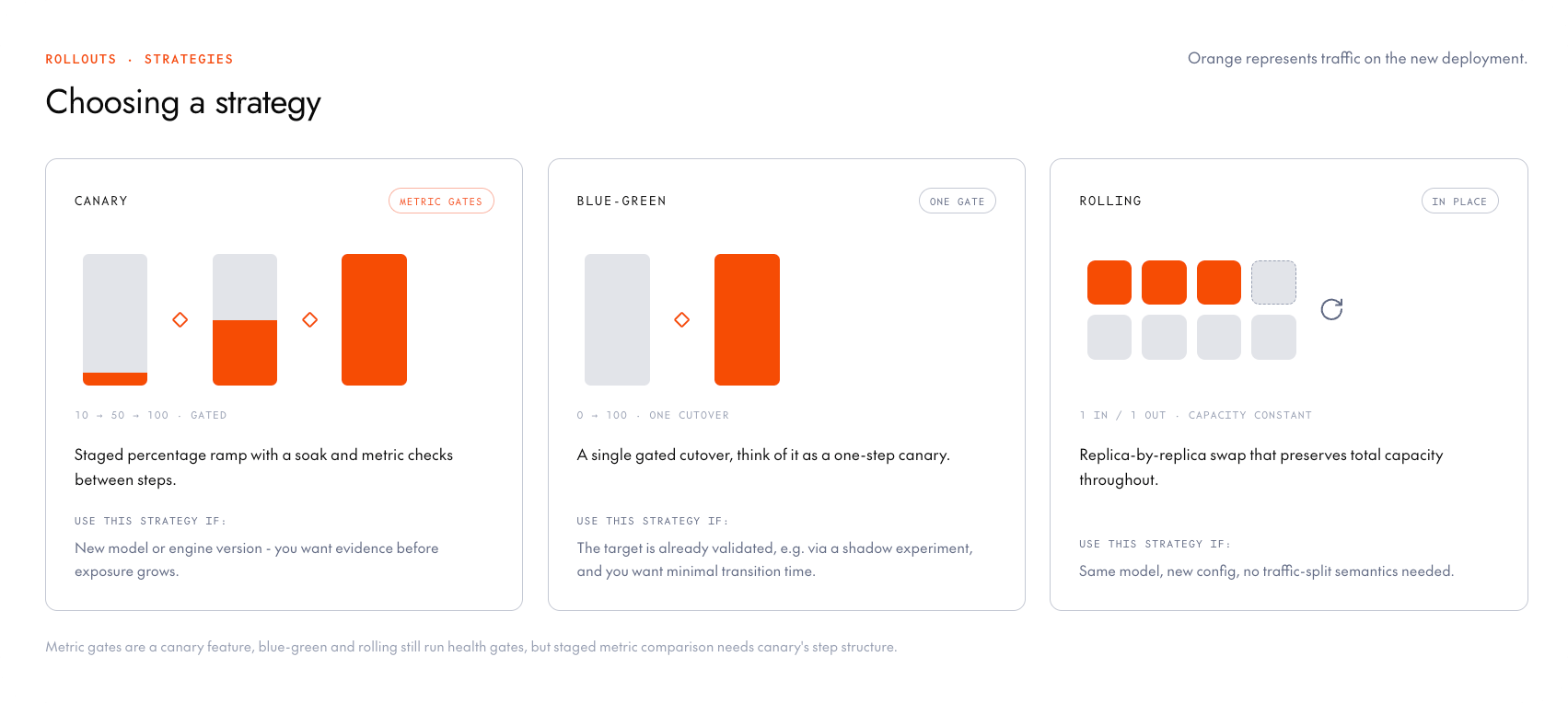
The rollout strategy you choose determines how traffic moves from the source deployment to the target. Pick exactly one strategy per rollout:
During a rollout, the source and target deployments will run at the same time while traffic shifts, so you'll be billed for both. (See [Pricing](/docs/dedicated-endpoints/pricing) for details.) The amount of extra capacity the overlap requires depends on the strategy (see **Extra capacity** in the table below).
| | **Canary** | **Blue-green** | **Rolling** |
| ------------------- | ---------------------------------------------------------------------------------------------------------------------------------------------------------------------------------------------------------------------------------------------------------------------------------------------------------------------------------------------------------- | -------------------------------------------------------------------------------------------------------------------------------------------------------------------------------------------------------------- | ------------------------------------------------------------------------------------------------------------------------- |
| **Traffic pattern** | Shifts traffic to the target in steps: by default 5%, then 25%, 50%, and 100%. After each step, the rollout holds traffic steady for a soak period so the new deployment can prove itself, optionally checked by a [metric gate](/docs/dedicated-endpoints/rollout-metric-gates) that pauses the rollout if the new deployment is worse than the original. | Moves all traffic to the target in one step, as soon as the target is ready. **The fastest option.** | Swaps replicas one batch at a time: a new replica comes up, then an old one shuts down. **The slowest option.** |
| **Extra capacity** | The target scales up and the source scales down as traffic moves, so the combined replica count stays close to the source's original size. | The target scales to full size before the cutover, so the endpoint briefly runs both deployments at full size (roughly double its usual replica count) until the source drains. **The most expensive option.** | Replicas swap from source to target one by one, keeping the combined count essentially constant. **The cheapest option.** |
| **Completion** | Completes after the final step's soak passes. Pass [`--promote`](#promote-a-rollout) to finish early. | Completes once the cutover stabilizes. | Completes when every replica batch has been swapped. |
| **Best for** | Gradual, [metric-gated](/docs/dedicated-endpoints/rollout-metric-gates) exposure. The safest option for production traffic. | One quick switch, when you can afford to run both deployments at full size while it happens. | Keeping your total GPU capacity constant during the swap. |
## Start a rollout
The `rollout` command creates a rollout and starts shifting traffic from the source to the target. Pass the target deployment (ID or name) and a strategy flag.
When exactly one deployment is receiving traffic, the CLI infers the source from the endpoint's traffic split. Otherwise `--source` is required.
See the [CLI reference](/reference/cli/endpoints-beta#rollout) for the full flag list.
### Canary
Pass `--canary`. To customize the ladder, set the traffic percentages with `--steps` and the soak between steps with `--interval`:
```bash theme={null}
# Canary with the default ladder (5%, 25%, 50%, 100%)
tg beta endpoints rollout dep_target456 --canary
# Canary with a custom ladder
tg beta endpoints rollout dep_target456 \
--canary \
--steps 25,50,75,100 \
--interval 300s
```
If the target is already serving some traffic (for example, after a [canceled rollout](#cancel-a-rollout)), your custom ladder must start above the share the target is already serving. When in doubt, omit `--steps` and the platform picks steps that fit the live traffic.
You can also configure a canary rollout to evaluate live metrics after each step, pausing automatically instead of advancing when the target regresses. Attach a metric gate with the `--metric*` flags:
```bash theme={null}
# Pause the rollout if p95 router latency exceeds 30 seconds (in milliseconds)
tg beta endpoints rollout dep_target456 --canary \
--metric router_latency --metric-stat p95 \
--metric-threshold 30000 --metric-operator lt \
--metric-window 300s
```
See [Gate rollouts with metrics](/docs/dedicated-endpoints/rollout-metric-gates) for the full list of supported metrics and configuration options.
### Blue-green
Pass `--blue-green`:
```bash theme={null}
tg beta endpoints rollout dep_target456 \
--source dep_source123 \
--blue-green
```
### Rolling
Pass `--rolling`:
```bash theme={null}
tg beta endpoints rollout dep_target456 --rolling
```
Endpoints
Open your endpoint and select the **Rollouts** tab, then select **New rollout**.
In the dialog:
1. Pick the **Source deployment** and the **Target deployment**. The console lists only eligible deployments: the source must be `READY`, and the target must be `READY` or `STOPPED`.
2. Pick a **Strategy**: **Canary**, **Blue-green**, or **Rolling**. The console defaults to canary.
3. After you pick a pair, the dialog fills in each empty field's placeholder with the default the platform will use, and shows the replica range the target is expected to end with. If anything about your setup would prevent the rollout from being created or started, a warning callout appears above the form.
4. For canary rollouts, leave **Canary steps** on **auto** to let the platform pick the steps, or switch to **custom** to set the traffic percentages yourself. Steps set traffic percentages only: the rollout sizes each step's replicas itself.
5. Optionally set **Step interval (seconds)** and **Final target replicas**. Leave either empty to use the default shown in the placeholder.
6. For a canary, optionally add [metric gates](/docs/dedicated-endpoints/rollout-metric-gates). Select **Add metric gate**, then set the gate's metric, aggregation, check, and window. See [Configure a metric gate](/docs/dedicated-endpoints/rollout-metric-gates#configure-a-metric-gate) for each field.
7. Leave **Start immediately** on to begin shifting traffic right away, or turn it off to create a pending rollout to start later.
8. Select **Start rollout** or **Create rollout**, depending on whether **Start immediately** is on.
## Monitor progress
Retrieve the rollout with `get`, passing the rollout ID (`rol_...`) printed under **Active Rollout** when you started it. You can also pass the endpoint ID to print the endpoint summary, which includes the active rollout's ID, state, strategy, and progress.
```bash theme={null}
# Rollout detail: state, strategy, step progress, traffic percent
tg beta endpoints get rol_abc123
# Endpoint summary with the active rollout's state and progress
tg beta endpoints get ep_abc123
```
To follow traffic-split transitions event by event, list the endpoint's [events](/docs/dedicated-endpoints/monitoring#events) with `--subject-id` set to the rollout ID. Traffic-shift rows include `old_traffic_percent` and `new_traffic_percent`.
Endpoints
When a rollout is active, your endpoint's **Overview** and **Rollouts** tabs show a rollout progress card with the strategy, the source and target names, a progress bar with the current step and the percentage of traffic on the target, and the lifecycle controls for the current state.
Select the details control on the progress card, or a row in the history table, to open the **Rollout details** drawer. The drawer shows the rollout's timing, each step's progress and state, and the verdict for each metric gate: **Pass**, **Breached**, or **No data** when the gate couldn't take a reading. While the rollout is running, the drawer refreshes automatically.
For the same information over the CLI or API, see [Step status on retrieve](#step-status-on-retrieve) and [How gate results appear on retrieve](/docs/dedicated-endpoints/rollout-metric-gates#how-gate-results-appear-on-retrieve).
A history table on the **Rollouts** tab lists every rollout with its state and dates. Open the endpoint's **Logs** tab for the same audit feed exposed by the CLI and API, including traffic-shift percentages for canary steps.
### Step status on retrieve
When you retrieve a rollout, `status.steps` lists one row per step with its `state`:
| `state` | Meaning |
| ---------- | --------------------------------------------------------------------------------------------------------------------------------------------------------- |
| `PASSED` | The step finished. `completed_at` is when it did. |
| `RUNNING` | The step currently in progress. |
| `PAUSED` | The step the rollout is paused on. Resuming continues from here. The pause cause is on the rollout (`pause_info` or `status.condition`), not on the step. |
| `CANCELED` | The step the rollout was canceled on. `completed_at` is set once the cancellation finishes. |
| `SKIPPED` | The rollout never completed the step; either a promotion jumped over it or a cancellation ended the rollout before it could run. |
| `FAILED` | The step failed. `failure_reason` carries the cause when one was recorded. |
| `PENDING` | Not reached yet. |
`started_at` is set only when the step actually ran.
## Manage a running rollout
You can pause, resume, promote, and cancel a rollout using the CLI or console. An endpoint has at most one active rollout, so the CLI accepts any of these identifiers: the endpoint or deployment ID or name, or the rollout ID (`rol_...`).
### Pause and resume
To manually pause a rollout, pass `--pause` (and optionally a reason). You can resume it later with `--resume`:
```bash theme={null}
# Pause
tg beta endpoints rollout ep_abc123 --pause --reason "holding for review"
# Resume
tg beta endpoints rollout ep_abc123 --resume
```
Endpoints
Open your endpoint's **Rollouts** tab and select **Pause** on the active rollout card. To continue a paused rollout (including one the platform paused), select **Resume**.
The platform may pause a rollout automatically, which sets the [rollout state](#rollout-states) to `SYSTEM_PAUSED` (for example on a failed [metric gate](/docs/dedicated-endpoints/rollout-metric-gates) or when capacity runs out). See [Troubleshooting](#troubleshooting) for the pause causes and how to respond to each.
### Promote a rollout
To promote a rollout, immediately shifting all traffic to the target, pass `--promote`:
```bash theme={null}
# Promote
tg beta endpoints rollout ep_abc123 --promote
```
Endpoints
Open your endpoint's **Rollouts** tab and select **Promote** on the active rollout card to move all traffic to the target immediately.
### Cancel a rollout
Canceling a rollout freezes the current [traffic split](/docs/dedicated-endpoints/route-traffic) wherever it is. Both deployments keep the weights that were serving at cancel time. A target that isn't serving traffic may be left at weight `0` or removed from the split.
After the cancellation completes, both deployments keep serving at those frozen shares (rollout events describe this as traffic frozen at the current split). This leftover state, the **frozen pair**, keeps serving until you either [edit the traffic split](/docs/dedicated-endpoints/route-traffic) to put all traffic on one deployment or [run the rollout in reverse](#roll-back-to-the-source).
Canceling before any traffic has shifted (a 0% split) leaves the target deployment running with no traffic. If you no longer need the target, scale it to zero or delete it once the cancellation is finished.
To cancel a rollout, pass `--cancel` and optionally a reason:
```bash theme={null}
# Cancel
tg beta endpoints rollout ep_abc123 --cancel --reason "latency regression on target"
```
Endpoints
Open your endpoint's **Rollouts** tab and select **Cancel** on the active rollout card. Enter a reason in the dialog, then select **Cancel rollout**.
## Roll back to the source
There is no separate rollback operation. To move traffic back, [run another rollout](#start-a-rollout) with the roles reversed.
### After a completed rollout
This works like any other rollout. The deployment now serving traffic becomes the source, and the old source is the target (any stopped deployment is an eligible target for the new rollout).
### After a canceled rollout
If you canceled a rollout and the endpoint is still serving from the frozen pair, roll back by running a new rollout with the roles reversed. Any strategy works. The platform adapts the rollout to the frozen state:
* **Replica counts:** `--final-target-replicas` defaults to the pair's combined replica count (the capacity serving all of the endpoint's traffic today), not only the source's count.
* **Canary steps:** For a canary, the default ladder skips the steps the new target has already passed. For example, if the cancel froze the target at 40%, the rollout runs only the 50% and 100% steps. A custom ladder must start above the frozen share, the same rule as when [starting any canary](#canary).
## Delete a rollout
You can delete a rollout that hasn't started yet or has finished (completed or canceled). Deleting the rollout record doesn't change the traffic split it left behind. To stop serving both deployments of a [frozen pair](#cancel-a-rollout), [edit the traffic split](/docs/dedicated-endpoints/route-traffic) so one deployment carries all of the traffic, then scale the other to zero if you no longer need it.
Use `rm` to delete a rollout, passing the rollout ID (`rol_...`):
```bash theme={null}
tg beta endpoints rm rol_abc123
```
Endpoints
Open your endpoint's **Rollouts** tab and select **Delete** in the rollout's actions menu in the history table.
## Rollout states
A rollout can pass through the following states:
| State | Meaning |
| --------------- | ---------------------------------------------------------------------------------------------------- |
| `PENDING` | Created but not yet started. |
| `RUNNING` | Actively shifting traffic. |
| `STABILIZING` | Holding at a step's traffic level before moving to the next. |
| `PAUSING` | Pause accepted. The current step may still finish before the rollout is fully paused. |
| `PAUSED` | Paused by the operator. The current split is held until you resume or cancel. |
| `SYSTEM_PAUSED` | Paused by the platform. Recoverable pauses may auto-resume. See [Troubleshooting](#troubleshooting). |
| `CANCELLING` | Cancel accepted. The current split keeps serving while the freeze is in progress. |
| `CANCELED` | Terminal. The current split is frozen into the endpoint's standing traffic split at cancel time. |
| `COMPLETED` | Terminal. All traffic has been shifted to the target. |
## Limitations
While a rollout is in any non-terminal [state](#rollout-states) (including `PENDING` and paused rollouts), it locks the endpoint resources it depends on:
* **Traffic split edits are blocked:** Editing the endpoint's [traffic split](/docs/dedicated-endpoints/route-traffic) returns a `409` until the rollout completes, is canceled, or is deleted. To check for an active rollout before editing, retrieve the endpoint: get, update, and list responses include the active rollout's ID as `activeRolloutId` (omitted when there is none).
* **One active rollout per endpoint:** Creating a second rollout returns a `409`, and the error names the rollout that blocks it and its state. A `PENDING` rollout left behind by a failed start also occupies the slot.
* **The source and target can't be stopped or deleted:** Deleting either deployment returns a `409`, and stopping one returns a `400`. The console disables **Stop** and **Delete** on both deployments, along with the endpoint's **Stop all deployments**.
* **The source and target can't join experiments:** A deployment can only serve one traffic role at a time, so adding either deployment to a [shadow experiment](/docs/dedicated-endpoints/shadow-experiments) or [A/B test](/docs/dedicated-endpoints/ab-tests) is rejected while the rollout is active.
* **Replica bounds stay editable, with one caveat:** Lowering the target's `--max-replicas` below what the current rollout step requires pauses the rollout with a [`POLICY_INFEASIBLE`](#troubleshooting) error.
## Troubleshooting
When the platform pauses a rollout (`SYSTEM_PAUSED`), the rollout's `status.condition` carries a typed `category` and a human-readable `message`.
Recoverable pauses often clear on their own: the platform retries the failed process every 15 minutes for up to 3 hours before leaving the rollout paused for your action. Operator pauses (`PAUSED`) never auto-resume.
| Category | Meaning | Typical action |
| --------------------- | --------------------------------------------------------------------------------------------------------------------------------- | --------------------------------------------------------------------------------------------------------------------------------------------------------------------------------------------------------------- |
| `METRIC_REGRESSION` | A [metric gate](/docs/dedicated-endpoints/rollout-metric-gates) detected the target is worse than the source. | Investigate why the target regressed before acting. A bad release calls for a cancel and a [reverse rollout](#roll-back-to-the-source), but an external cause (like a traffic surge) may only need a resume. |
| `METRICS_UNAVAILABLE` | The gate could not collect enough samples. The most common cause is an outage in the platform's metrics pipeline. | Wait for the metrics pipeline to recover. The platform may auto-retry. Resume manually if the pause persists. |
| `TARGET_NOT_READY` | The target deployment did not become ready in time. | Investigate the target deployment. The platform may auto-retry. Resume or cancel if the pause persists. |
| `HEALTH_REGRESSION` | A health check failed during the soak window (the waiting period after each step). | Investigate the failed check before acting. Cancel and [run a rollout in reverse](#roll-back-to-the-source) if the target is at fault, or resume if the cause was external. |
| `CAPACITY_EXHAUSTED` | The Together AI GPU fleet does not have enough capacity for the requested replicas. | Wait for capacity. The platform may auto-retry. Resume if the pause persists. |
| `ROUTING_ERROR` | The routing tier stopped serving during the soak window. | Wait for the routing tier to recover. The platform may auto-retry. Resume if the pause persists. |
| `POLICY_INFEASIBLE` | The target's max replicas is below what the current step needs. This usually follows a mid-run edit to the target's max replicas. | Raise the [max replicas](/docs/dedicated-endpoints/scaling#replica-bounds) bound, then resume. A rollout can't be edited after creation, so to lower its final target replicas instead, cancel and recreate it. |
| `UNDER_SERVED` | Ready capacity on one side fell below what the current traffic split requires. | Restore capacity or reduce the split. The platform may auto-retry. Resume if the pause persists. |
| `ENTITLEMENT_LAPSED` | The target project's billing standing failed the entitlement check before a target scale-up. | Resolve the billing issue. The platform may auto-retry. Resume or cancel if the pause persists. |
| `INTERNAL` | An unexpected platform error. | Contact support with the rollout ID and `message`. |
Here are some other common issues and their solutions:
* **New replicas are slow to take on traffic:** Each step brings up new replicas, each of which requires a [cold start](/docs/dedicated-endpoints/concepts#cold-starts). For canary rollouts, set the [`--interval`](/reference/cli/endpoints-beta#rollout) long enough for the replica to warm up before the gate starts sampling.
* **Create returns `409`:** An endpoint can have only one active rollout at a time. Finish or cancel the existing rollout before creating another.
* **Preview warns with `START_WILL_REJECT`:** The rollout can be created, but starting it would fail while the deployments keep their current traffic shape (for example, the target already serves the pair's whole share). Follow the fix in the warning message, then start the rollout again.
* **Create fails or warns because a custom canary ladder starts at or below the target's share:** Create returns a `400` when the first step is below the share of traffic the target already serves, and preview warns with `FIRST_STEP_AT_SEED` when the first step exactly equals that share (creating may work, but starting can still fail). Raise the first step above the target's share, or omit `--steps` (leave **Canary steps** on **auto** in the console) so the platform picks steps that fit.
* **Create returns `400` for a metric gate:** The gate's threshold or regression budget could never pass, or could never fail, so the gate would be meaningless. Fix the operator and value so a realistic reading can pass and a bad one can fail. See [Supported metrics](/docs/dedicated-endpoints/rollout-metric-gates#supported-metrics) for each metric's unit.
* **Preview shows a landing max above the target's current max replicas:** So the target can hold the endpoint's whole traffic, the rollout raises the target's max replicas to cover the larger of the two deployments (or `--final-target-replicas`, if higher). The raised bound stays after the rollout ends. Lower it afterward if you don't want to keep it.
* **Preview shows a landing minimum above your `--final-target-replicas`:** A rollout never lowers a target's own min replicas, so the completed target keeps the higher of the two values. To land at the final you declared, lower the target's [min replicas](/docs/dedicated-endpoints/scaling#replica-bounds) first.
* **Preview warns with `FINAL_BELOW_SOURCE_MIN`:** You asked for fewer final target replicas than the source's minimum, so the endpoint ends the rollout with a lower autoscaling floor than it has today. This is allowed. Raise `--final-target-replicas` if you want to keep the source's floor.
* **Updating the traffic split returns `409`:** The rollout controls the endpoint's traffic split in every non-terminal state (including pending or paused). Complete, cancel, or delete the rollout before editing traffic weights. In the console, **Traffic weight** is also disabled on **New deployment** and **Edit** while a rollout is active.
* **Stop or delete is disabled on a deployment in the console:** The deployment is the source or target of an active rollout. Complete or cancel the rollout first. **Stop all deployments** on the endpoint is also disabled while any rollout is active.
* **Create returns `400` after naming a shadow experiment target:** The source or target is registered as a [shadow experiment](/docs/dedicated-endpoints/shadow-experiments) target. Pass `--detach` to detach a shadow or A/B target automatically. A shadow source must be removed by hand.
* **`rollout` reports `Created rollout ... but failed to start it`:** Creation succeeded but the start call failed, so a `PENDING` rollout now occupies the endpoint's single active-rollout slot. Run the cleanup command the CLI prints (`tg beta endpoints rm rol_...`), fix the underlying cause, then create the rollout again.
* **An error says the project `is not in good standing`:** The same billing check runs when you create a rollout, when you start it, and before each step scales up the target (where a failure pauses the rollout with `ENTITLEMENT_LAPSED`). Resolve the billing issue on the project, then retry or resume.
* **An error says only `internal error` or `Failed Precondition`:** Some platform failures surface as a generic message with no further detail. Contact support with the rollout ID and the time of the failure.
## Next steps
Pause a canary automatically when the target regresses on live metrics.
Create the source and target deployments a rollout shifts between.
 During a rollout, the source and target deployments will run at the same time while traffic shifts, so you'll be billed for both. (See [Pricing](/docs/dedicated-endpoints/pricing) for details.) The amount of extra capacity the overlap requires depends on the strategy (see **Extra capacity** in the table below).
| | **Canary** | **Blue-green** | **Rolling** |
| ------------------- | ---------------------------------------------------------------------------------------------------------------------------------------------------------------------------------------------------------------------------------------------------------------------------------------------------------------------------------------------------------- | -------------------------------------------------------------------------------------------------------------------------------------------------------------------------------------------------------------- | ------------------------------------------------------------------------------------------------------------------------- |
| **Traffic pattern** | Shifts traffic to the target in steps: by default 5%, then 25%, 50%, and 100%. After each step, the rollout holds traffic steady for a soak period so the new deployment can prove itself, optionally checked by a [metric gate](/docs/dedicated-endpoints/rollout-metric-gates) that pauses the rollout if the new deployment is worse than the original. | Moves all traffic to the target in one step, as soon as the target is ready. **The fastest option.** | Swaps replicas one batch at a time: a new replica comes up, then an old one shuts down. **The slowest option.** |
| **Extra capacity** | The target scales up and the source scales down as traffic moves, so the combined replica count stays close to the source's original size. | The target scales to full size before the cutover, so the endpoint briefly runs both deployments at full size (roughly double its usual replica count) until the source drains. **The most expensive option.** | Replicas swap from source to target one by one, keeping the combined count essentially constant. **The cheapest option.** |
| **Completion** | Completes after the final step's soak passes. Pass [`--promote`](#promote-a-rollout) to finish early. | Completes once the cutover stabilizes. | Completes when every replica batch has been swapped. |
| **Best for** | Gradual, [metric-gated](/docs/dedicated-endpoints/rollout-metric-gates) exposure. The safest option for production traffic. | One quick switch, when you can afford to run both deployments at full size while it happens. | Keeping your total GPU capacity constant during the swap. |
## Start a rollout
During a rollout, the source and target deployments will run at the same time while traffic shifts, so you'll be billed for both. (See [Pricing](/docs/dedicated-endpoints/pricing) for details.) The amount of extra capacity the overlap requires depends on the strategy (see **Extra capacity** in the table below).
| | **Canary** | **Blue-green** | **Rolling** |
| ------------------- | ---------------------------------------------------------------------------------------------------------------------------------------------------------------------------------------------------------------------------------------------------------------------------------------------------------------------------------------------------------- | -------------------------------------------------------------------------------------------------------------------------------------------------------------------------------------------------------------- | ------------------------------------------------------------------------------------------------------------------------- |
| **Traffic pattern** | Shifts traffic to the target in steps: by default 5%, then 25%, 50%, and 100%. After each step, the rollout holds traffic steady for a soak period so the new deployment can prove itself, optionally checked by a [metric gate](/docs/dedicated-endpoints/rollout-metric-gates) that pauses the rollout if the new deployment is worse than the original. | Moves all traffic to the target in one step, as soon as the target is ready. **The fastest option.** | Swaps replicas one batch at a time: a new replica comes up, then an old one shuts down. **The slowest option.** |
| **Extra capacity** | The target scales up and the source scales down as traffic moves, so the combined replica count stays close to the source's original size. | The target scales to full size before the cutover, so the endpoint briefly runs both deployments at full size (roughly double its usual replica count) until the source drains. **The most expensive option.** | Replicas swap from source to target one by one, keeping the combined count essentially constant. **The cheapest option.** |
| **Completion** | Completes after the final step's soak passes. Pass [`--promote`](#promote-a-rollout) to finish early. | Completes once the cutover stabilizes. | Completes when every replica batch has been swapped. |
| **Best for** | Gradual, [metric-gated](/docs/dedicated-endpoints/rollout-metric-gates) exposure. The safest option for production traffic. | One quick switch, when you can afford to run both deployments at full size while it happens. | Keeping your total GPU capacity constant during the swap. |
## Start a rollout