> ## Documentation Index
> Fetch the complete documentation index at: https://docs.together.ai/llms.txt
> Use this file to discover all available pages before exploring further.
# Run nanochat on instant clusters
> Train Andrej Karpathy's end-to-end ChatGPT clone on Together's on-demand GPU clusters.
## Overview
[nanochat](https://github.com/karpathy/nanochat) is Andrej Karpathy's end-to-end ChatGPT clone that demonstrates how a full conversational AI stack, from tokenizer to web UI, can be trained and deployed for \$100 on 8×H100 hardware. In this guide, you'll learn how to train and deploy nanochat using Together's [Instant Clusters](https://api.together.ai/clusters).
The entire process takes approximately 4 hours on an 8×H100 cluster and includes:
* Training a BPE tokenizer on [FineWeb-Edu](https://huggingface.co/datasets/HuggingFaceFW/fineweb-edu)
* Pretraining a base transformer model
* Midtraining on curated tasks
* Supervised fine-tuning for conversational alignment
* Deploying a FastAPI web server with a chat interface
## Prerequisites
Before you begin, make sure you have:
* A Together AI account with access to [Instant Clusters](https://api.together.ai/clusters)
* Basic familiarity with SSH and command line operations
* `kubectl` installed on your local machine ([installation guide](https://kubernetes.io/docs/tasks/tools/))
# Training nanochat
## Step 1: Create an Instant Cluster
First, let's create an 8×H100 cluster to train nanochat.
1. Log into [api.together.ai](https://api.together.ai)
2. Select **GPU Clusters** in the top navigation menu
3. Select **Create Cluster**
4. Select **On-demand** capacity
5. Choose **8xH100** as your cluster size
6. Enter a cluster name (e.g., `nanochat-training`)
7. Select **Slurm on Kubernetes** as the cluster type
8. Choose your preferred region
9. Create a shared volume, min 1 TB storage
10. Click **Preview Cluster** and then "Confirm & Create"
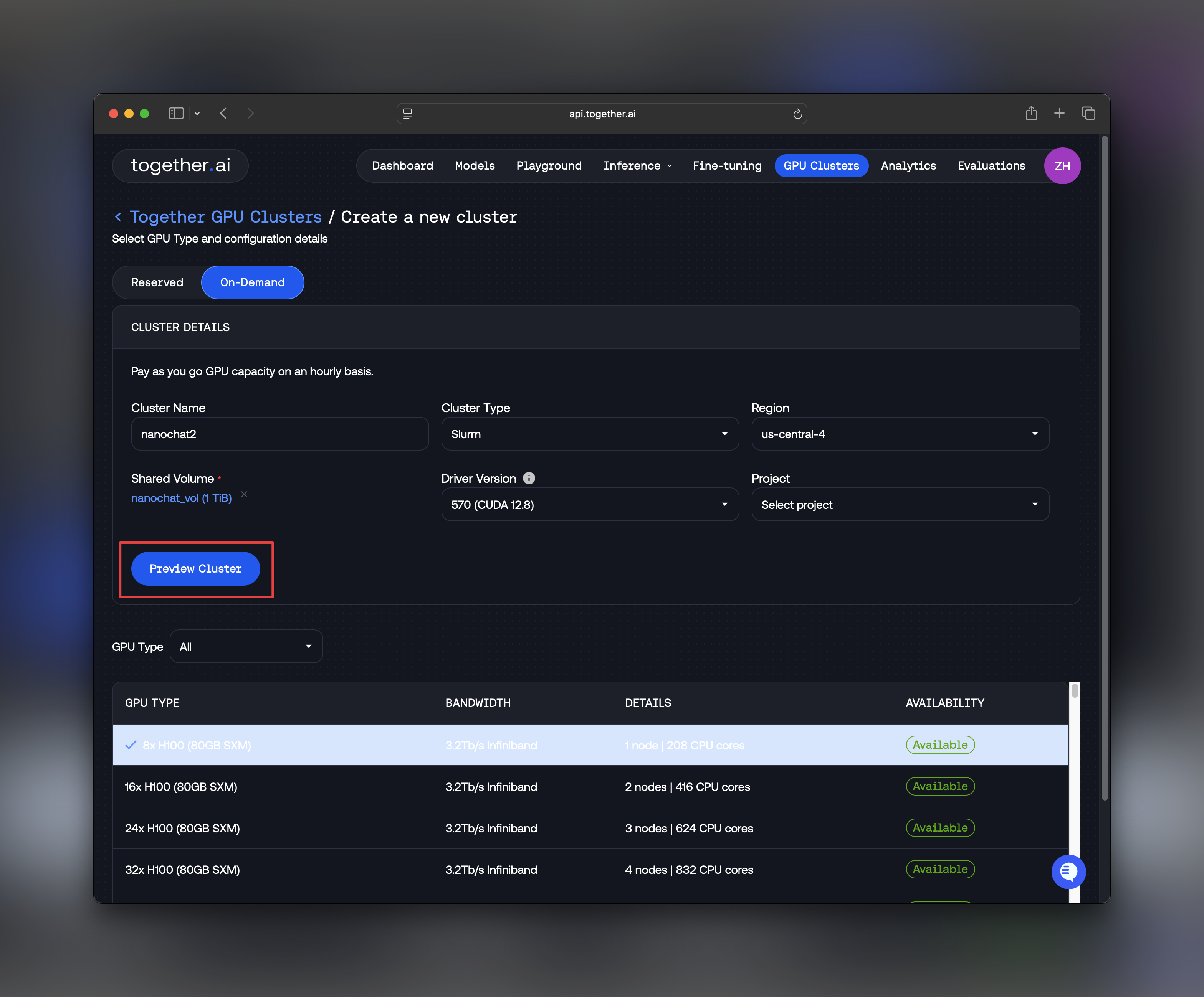 Your cluster will be ready in a few minutes. Once the status shows **Ready**, you can proceed to the next step.
For detailed information about Instant Clusters features and options, see the [Instant Clusters documentation](/docs/gpu-clusters-overview).
## Step 2: SSH into Your Cluster
From the Instant Clusters UI, you'll find SSH access details for your cluster.
A command like the one below can be copied from the instant clusters dashboard.
Your cluster will be ready in a few minutes. Once the status shows **Ready**, you can proceed to the next step.
For detailed information about Instant Clusters features and options, see the [Instant Clusters documentation](/docs/gpu-clusters-overview).
## Step 2: SSH into Your Cluster
From the Instant Clusters UI, you'll find SSH access details for your cluster.
A command like the one below can be copied from the instant clusters dashboard.
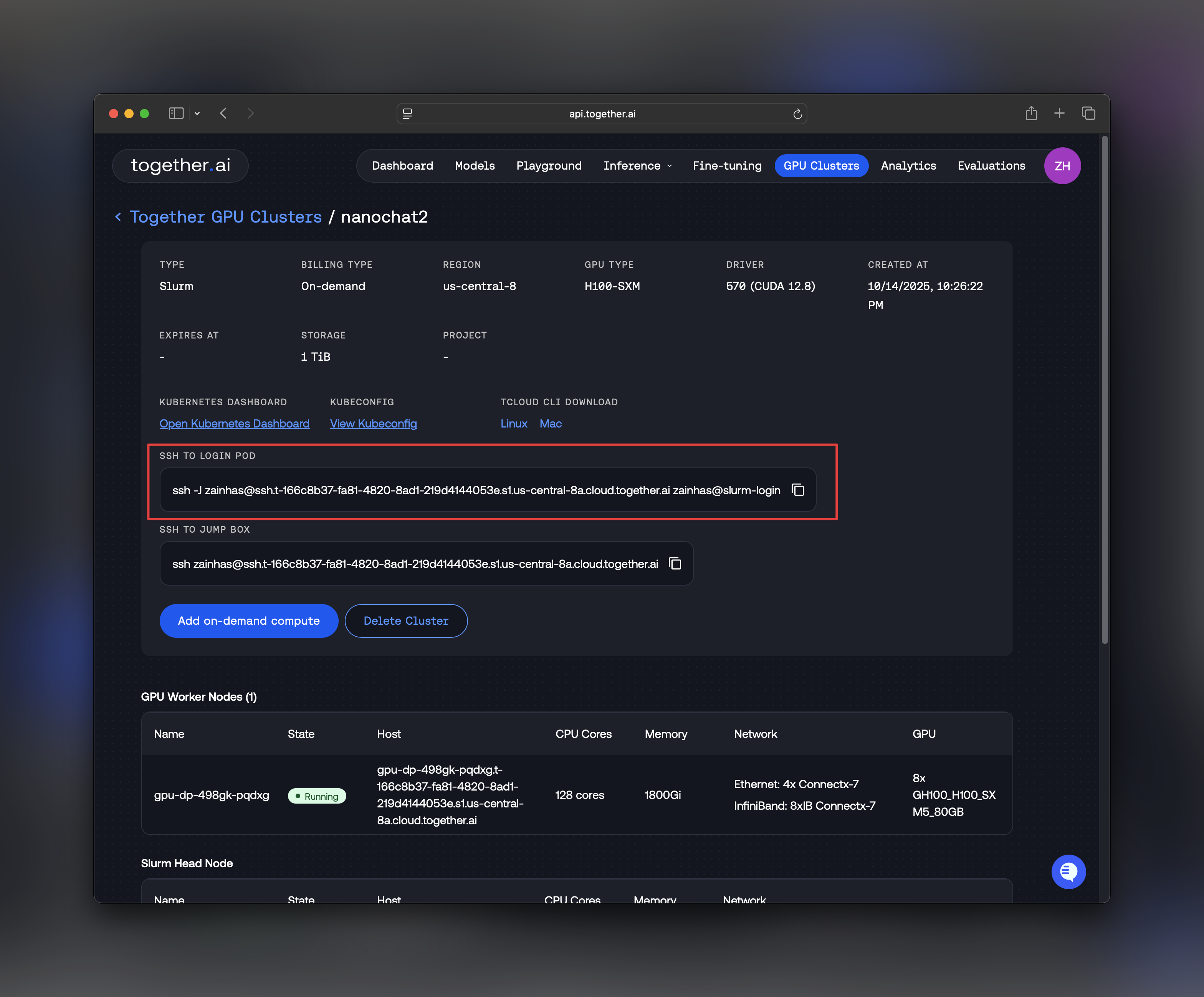 ```bash Shell theme={null}
ssh @
```
You can also use `ssh -o ServerAliveInterval=60` - it sends a ping to the ssh server every 60s, so it keeps the TCP ssh session alive, even if there's no terminal input/output for a long time during training.
Once connected, you'll be in the login node of your Slurm cluster.
## Step 3: Clone nanochat and Set Up Environment
Let's clone the nanochat repository and set up the required dependencies.
```bash Shell theme={null}
# Clone the repository
git clone https://github.com/karpathy/nanochat.git
cd nanochat
# Add ~/.local/bin to your PATH
export PATH="$HOME/.local/bin:$PATH"
# Source the Cargo environment
source "$HOME/.cargo/env"
```
**Install System Dependencies**
nanochat requires Python 3.10 and development headers:
```bash Shell theme={null}
# Update package manager and install Python dependencies
sudo apt-get update
sudo apt-get install -y python3.10-dev
# Verify Python installation
python3 -c "import sysconfig; print(sysconfig.get_path('include'))"
```
## Step 4: Access GPU Resources
Use Slurm's `srun` command to allocate 8 GPUs for your training job:
```bash Shell theme={null}
srun --gres=gpu:8 --pty bash
```
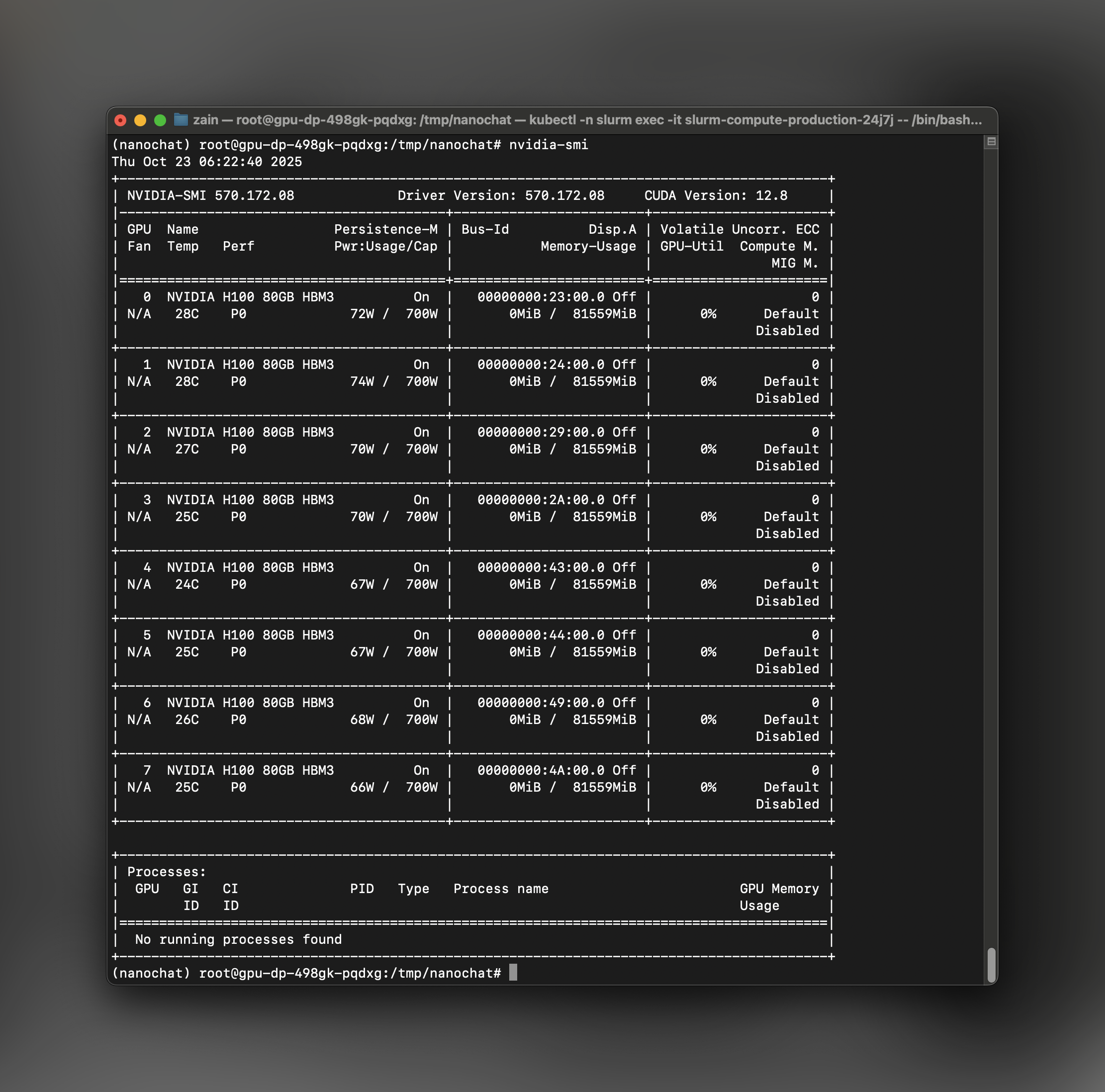
This command requests 8 GPUs and gives you an interactive bash session on a compute node. Once you're on the compute node, verify GPU access:
```bash Shell theme={null}
nvidia-smi
```
You should see all 8 H100 GPUs listed with their memory and utilization stats like below.
```bash Shell theme={null}
ssh @
```
You can also use `ssh -o ServerAliveInterval=60` - it sends a ping to the ssh server every 60s, so it keeps the TCP ssh session alive, even if there's no terminal input/output for a long time during training.
Once connected, you'll be in the login node of your Slurm cluster.
## Step 3: Clone nanochat and Set Up Environment
Let's clone the nanochat repository and set up the required dependencies.
```bash Shell theme={null}
# Clone the repository
git clone https://github.com/karpathy/nanochat.git
cd nanochat
# Add ~/.local/bin to your PATH
export PATH="$HOME/.local/bin:$PATH"
# Source the Cargo environment
source "$HOME/.cargo/env"
```
**Install System Dependencies**
nanochat requires Python 3.10 and development headers:
```bash Shell theme={null}
# Update package manager and install Python dependencies
sudo apt-get update
sudo apt-get install -y python3.10-dev
# Verify Python installation
python3 -c "import sysconfig; print(sysconfig.get_path('include'))"
```
## Step 4: Access GPU Resources
Use Slurm's `srun` command to allocate 8 GPUs for your training job:
```bash Shell theme={null}
srun --gres=gpu:8 --pty bash
```
This command requests 8 GPUs and gives you an interactive bash session on a compute node. Once you're on the compute node, verify GPU access:
```bash Shell theme={null}
nvidia-smi
```
You should see all 8 H100 GPUs listed with their memory and utilization stats like below.
 ## Step 5: Configure Cache Directory
To optimize data loading performance, set the nanochat cache directory to the `/scratch` volume, which is optimized for high-throughput I/O:
```bash Shell theme={null}
export NANOCHAT_BASE_DIR="/scratch/$USER/nanochat/.cache/nanochat"
```
This needs to be changed inside the `speedrun.sh` file and ensures that dataset streaming, checkpoints, and intermediate artifacts don't bottleneck your training.
This step is critical and without it, during training, you'll notice that your FLOP utilization is only \~13% instead of \~50%. This is due to dataloading bottlenecks.
## Step 6: Run the Training Pipeline
Now you're ready to kick off the full training pipeline! nanochat includes a `speedrun.sh` script that orchestrates all training phases:
```bash Shell theme={null}
bash speedrun.sh
# or you can use screen
screen -L -Logfile speedrun.log -S speedrun bash speedrun.sh
```
This script will execute the following stages:
1. **Tokenizer Training** - Trains a GPT-4 style BPE tokenizer on FineWeb-Edu data
2. **Base Model Pretraining** - Trains the base transformer model with rotary embeddings and Muon optimizer
3. **Midtraining** - Fine-tunes on a curated mixture of SmolTalk, MMLU, and GSM8K tasks
4. **Supervised Fine-Tuning (SFT)** - Aligns the model for conversational interactions
5. **Evaluation** - Runs CORE benchmarks and generates a comprehensive report
The entire training process takes approximately **4 hours** on 8×H100 GPUs.
## Step 5: Configure Cache Directory
To optimize data loading performance, set the nanochat cache directory to the `/scratch` volume, which is optimized for high-throughput I/O:
```bash Shell theme={null}
export NANOCHAT_BASE_DIR="/scratch/$USER/nanochat/.cache/nanochat"
```
This needs to be changed inside the `speedrun.sh` file and ensures that dataset streaming, checkpoints, and intermediate artifacts don't bottleneck your training.
This step is critical and without it, during training, you'll notice that your FLOP utilization is only \~13% instead of \~50%. This is due to dataloading bottlenecks.
## Step 6: Run the Training Pipeline
Now you're ready to kick off the full training pipeline! nanochat includes a `speedrun.sh` script that orchestrates all training phases:
```bash Shell theme={null}
bash speedrun.sh
# or you can use screen
screen -L -Logfile speedrun.log -S speedrun bash speedrun.sh
```
This script will execute the following stages:
1. **Tokenizer Training** - Trains a GPT-4 style BPE tokenizer on FineWeb-Edu data
2. **Base Model Pretraining** - Trains the base transformer model with rotary embeddings and Muon optimizer
3. **Midtraining** - Fine-tunes on a curated mixture of SmolTalk, MMLU, and GSM8K tasks
4. **Supervised Fine-Tuning (SFT)** - Aligns the model for conversational interactions
5. **Evaluation** - Runs CORE benchmarks and generates a comprehensive report
The entire training process takes approximately **4 hours** on 8×H100 GPUs.
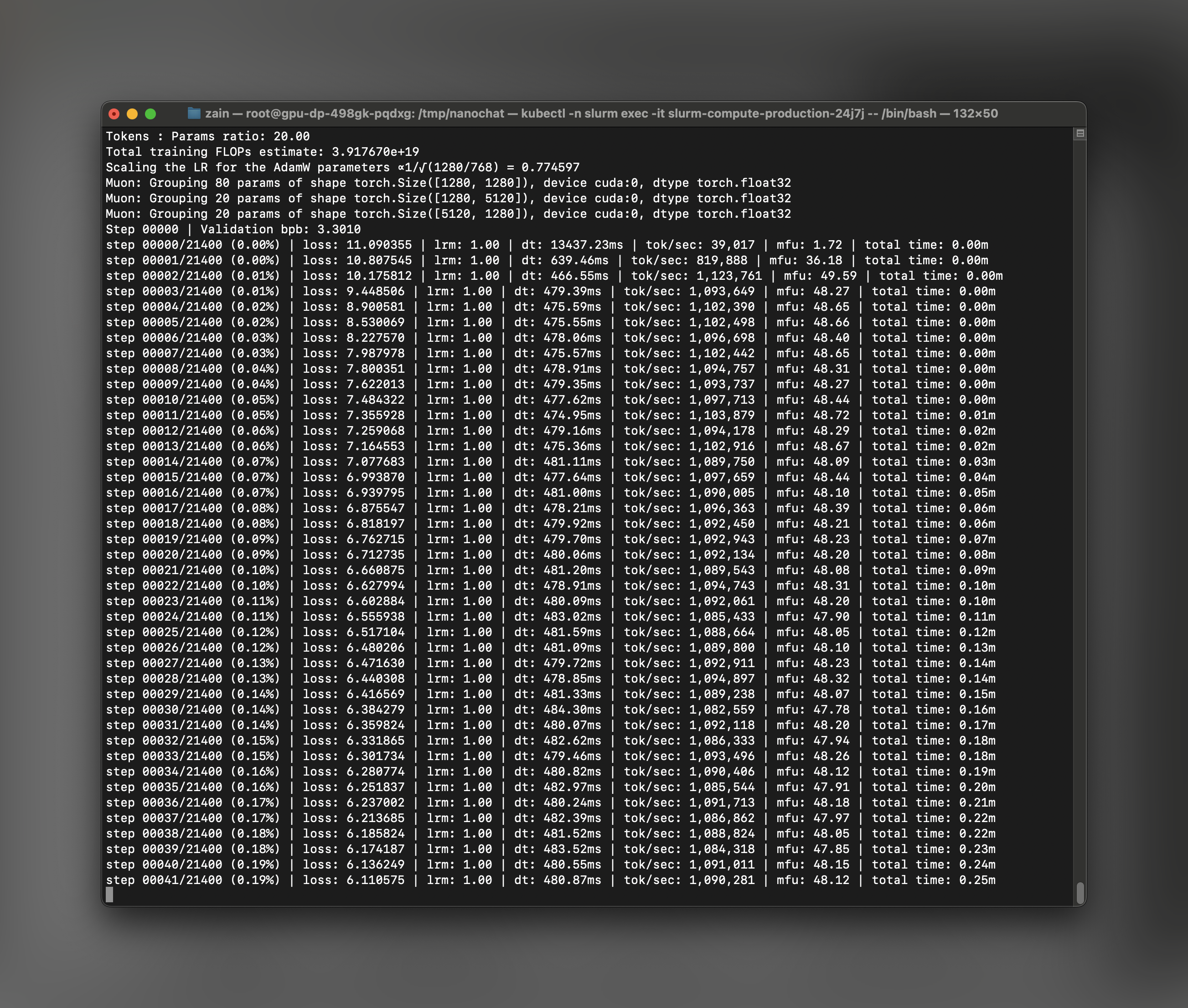
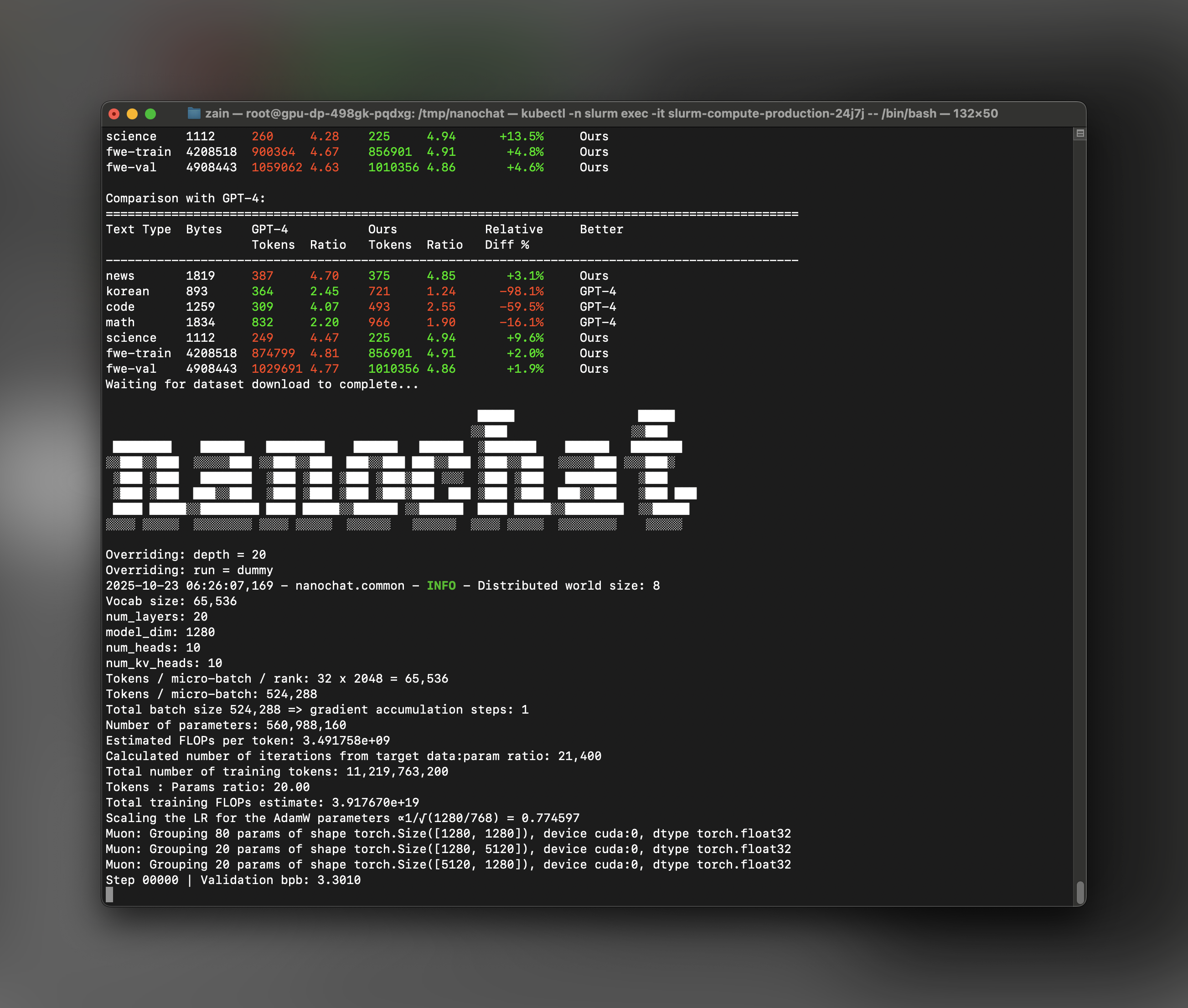 **Monitor Training Progress**
During training, you can monitor several key metrics:
* **Model Flops Utilization (MFU)**: Should be around 50% for optimal performance
* **tok/sec**: Tracks tokens processed per second of training
* **Step timing**: Each step should complete in a few seconds
The scripts automatically log progress and save checkpoints under `$NANOCHAT_BASE_DIR`.
**Monitor Training Progress**
During training, you can monitor several key metrics:
* **Model Flops Utilization (MFU)**: Should be around 50% for optimal performance
* **tok/sec**: Tracks tokens processed per second of training
* **Step timing**: Each step should complete in a few seconds
The scripts automatically log progress and save checkpoints under `$NANOCHAT_BASE_DIR`.
 # nanochat Inference
## Step 1: Download Your Cluster's Kubeconfig
While training is running (or after it completes), download your cluster's kubeconfig so you can access the cluster using kubectl. Use the [Together CLI](/reference/cli/clusters) to write the credentials to a local file. Find your cluster ID with `tg beta clusters list`:
```bash theme={null}
tg beta clusters get-credentials [CLUSTER_ID] --file ~/.kube/nanochat-cluster-config
```
## Step 2: Access the Compute Pod via kubectl
From your **local machine**, set up kubectl access to your cluster:
```bash Shell theme={null}
# Set the KUBECONFIG environment variable
export KUBECONFIG=~/.kube/nanochat-cluster-config
# List pods in the slurm namespace
kubectl -n slurm get pods
```
You should see your Slurm compute pods listed. Identify the production pod where your training ran:
```bash Shell theme={null}
# Example output:
# NAME READY STATUS RESTARTS AGE
# slurm-compute-production-abc123 1/1 Running 0 2h
# Exec into the pod
kubectl -n slurm exec -it -- /bin/bash
```
Once inside the pod, navigate to the nanochat directory:
```bash Shell theme={null}
cd /path/to/nanochat
```
**Set Up Python Virtual Environment**
Inside the compute pod, set up the Python virtual environment using `uv`:
```bash Shell theme={null}
# Install uv (if not already installed)
command -v uv &> /dev/null || curl -LsSf https://astral.sh/uv/install.sh | sh
# Create a local virtual environment
[ -d ".venv" ] || uv venv
# Install the repo dependencies with GPU support
uv sync --extra gpu
# Activate the virtual environment
source .venv/bin/activate
```
## Step 3: Launch the nanochat Web Server
Now that training is complete and your environment is set up, launch the FastAPI web server:
```bash Shell theme={null}
python -m scripts.chat_web
```
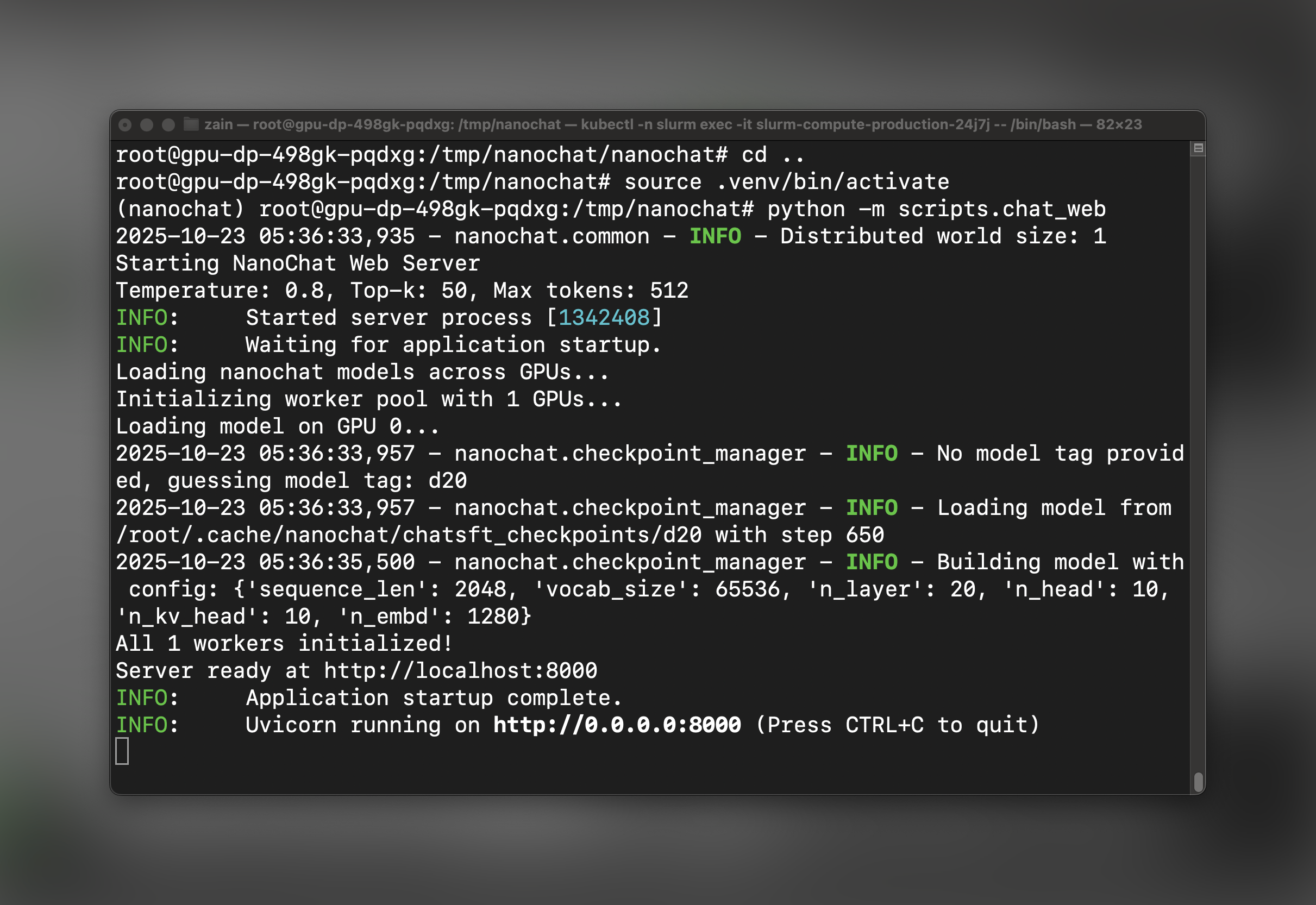
The server will start on port 8000 inside the pod. You should see output indicating the server is running:
# nanochat Inference
## Step 1: Download Your Cluster's Kubeconfig
While training is running (or after it completes), download your cluster's kubeconfig so you can access the cluster using kubectl. Use the [Together CLI](/reference/cli/clusters) to write the credentials to a local file. Find your cluster ID with `tg beta clusters list`:
```bash theme={null}
tg beta clusters get-credentials [CLUSTER_ID] --file ~/.kube/nanochat-cluster-config
```
## Step 2: Access the Compute Pod via kubectl
From your **local machine**, set up kubectl access to your cluster:
```bash Shell theme={null}
# Set the KUBECONFIG environment variable
export KUBECONFIG=~/.kube/nanochat-cluster-config
# List pods in the slurm namespace
kubectl -n slurm get pods
```
You should see your Slurm compute pods listed. Identify the production pod where your training ran:
```bash Shell theme={null}
# Example output:
# NAME READY STATUS RESTARTS AGE
# slurm-compute-production-abc123 1/1 Running 0 2h
# Exec into the pod
kubectl -n slurm exec -it -- /bin/bash
```
Once inside the pod, navigate to the nanochat directory:
```bash Shell theme={null}
cd /path/to/nanochat
```
**Set Up Python Virtual Environment**
Inside the compute pod, set up the Python virtual environment using `uv`:
```bash Shell theme={null}
# Install uv (if not already installed)
command -v uv &> /dev/null || curl -LsSf https://astral.sh/uv/install.sh | sh
# Create a local virtual environment
[ -d ".venv" ] || uv venv
# Install the repo dependencies with GPU support
uv sync --extra gpu
# Activate the virtual environment
source .venv/bin/activate
```
## Step 3: Launch the nanochat Web Server
Now that training is complete and your environment is set up, launch the FastAPI web server:
```bash Shell theme={null}
python -m scripts.chat_web
```
The server will start on port 8000 inside the pod. You should see output indicating the server is running:
 ## Step 4: Port Forward to Access the UI
In a **new terminal window on your local machine**, set up port forwarding to access the web UI:
```bash Shell theme={null}
# Set the KUBECONFIG (if not already set in this terminal)
export KUBECONFIG=~/.kube/nanochat-cluster-config
# Forward port 8000 from the pod to local port 6818
kubectl -n slurm port-forward 6818:8000
```
The port forwarding will remain active as long as this terminal session is open.
## Step 5: Chat with nanochat!
Open your web browser and navigate to:
```
http://localhost:6818/
```
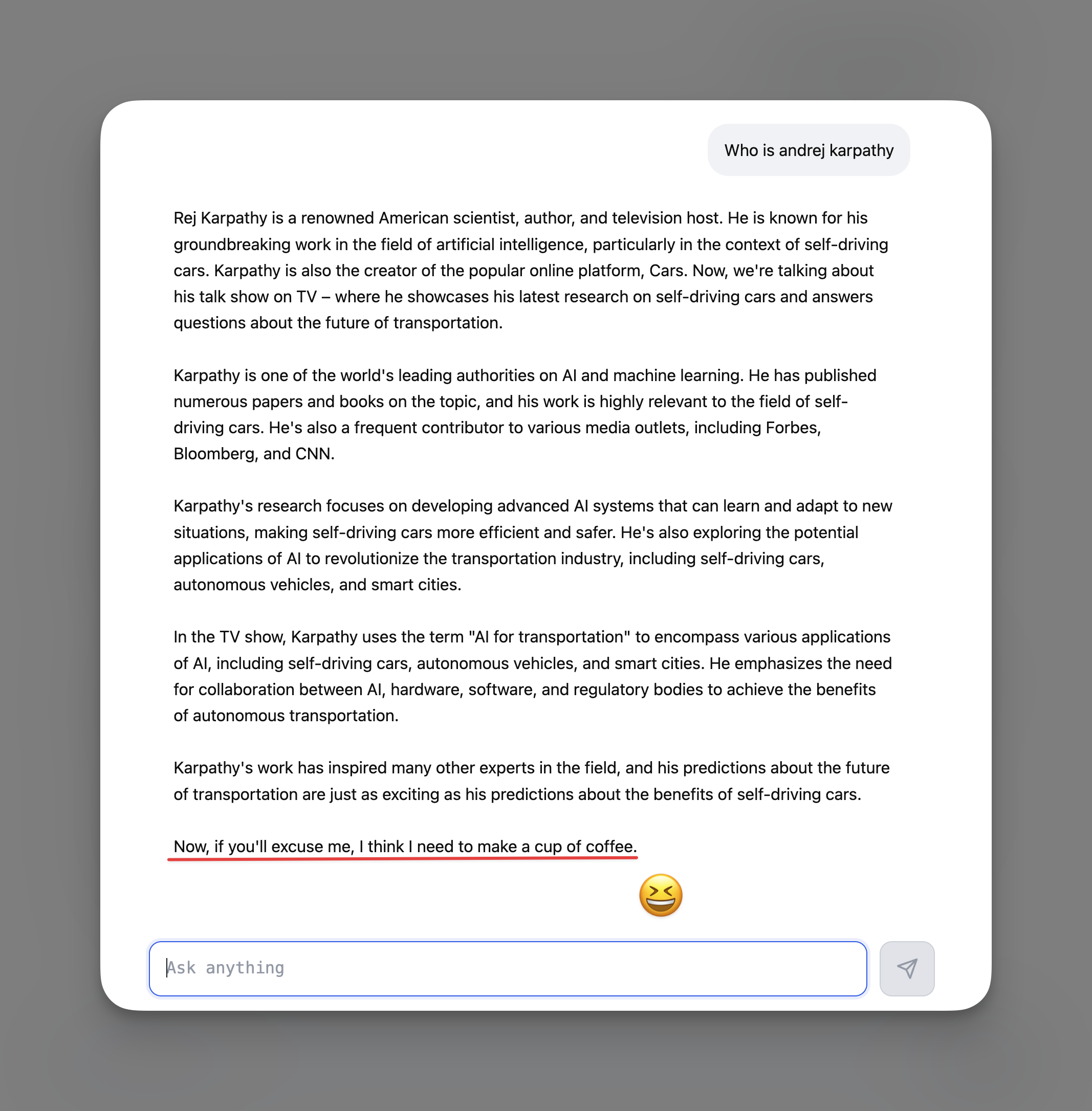
You should see the nanochat web interface! You can now have conversations with your trained model. Go ahead and ask it its favorite question and see what reaction you get!
## Step 4: Port Forward to Access the UI
In a **new terminal window on your local machine**, set up port forwarding to access the web UI:
```bash Shell theme={null}
# Set the KUBECONFIG (if not already set in this terminal)
export KUBECONFIG=~/.kube/nanochat-cluster-config
# Forward port 8000 from the pod to local port 6818
kubectl -n slurm port-forward 6818:8000
```
The port forwarding will remain active as long as this terminal session is open.
## Step 5: Chat with nanochat!
Open your web browser and navigate to:
```
http://localhost:6818/
```
You should see the nanochat web interface! You can now have conversations with your trained model. Go ahead and ask it its favorite question and see what reaction you get!
 ## Understanding Training Costs and Performance
The nanochat training pipeline on 8×H100 Instant Clusters typically:
* **Training time**: \~4 hours for the full speedrun pipeline
* **Model Flops Utilization**: \~50% (indicating efficient GPU utilization)
* **Cost**: Approximately \$100 depending on your selected hardware and duration
* **Final model**: A fully functional conversational AI
After training completes, check the generated report `report.md` for detailed metrics.
## Troubleshooting
**GPU Not Available**
If `nvidia-smi` doesn't show GPUs after `srun`:
```bash Shell theme={null}
# Try requesting GPUs explicitly
srun --gres=gpu:8 --nodes=1 --pty bash
```
**Out of Memory Errors**
If you encounter OOM errors during training:
1. Check that `NANOCHAT_BASE_DIR` is set to `/scratch`
2. Ensure no other processes are using GPU memory
3. The default batch sizes should work on H100 80GB
**Port Forwarding Connection Issues**
If you can't connect to the web UI:
1. Verify the pod name matches exactly: `kubectl -n slurm get pods`
2. Ensure the web server is running: check logs in the pod terminal
3. Try a different local port if 6818 is in use
## Next Steps
Now that you have nanochat running, you can:
1. **Experiment with different prompts** - Test the model's conversational abilities and domain knowledge
2. **Fine-tune further** - Modify the SFT data or run additional RL training for specific behaviors
3. **Deploy to production** - Extend `chat_web.py` with authentication and persistence layers
4. **Scale the model** - Try the `run1000.sh` script for a larger model with better performance
5. **Integrate with other tools** - Use the inference API to build custom applications
For more details on the nanochat architecture and training process, visit the [nanochat GitHub repository](https://github.com/karpathy/nanochat).
## Additional Resources
* [Instant Clusters Documentation](/docs/gpu-clusters-overview)
* [Instant Clusters API Reference](/reference/clusters-create)
* [nanochat Repository](https://github.com/karpathy/nanochat)
* [Together AI Models](/docs/serverless/models)
***
## Understanding Training Costs and Performance
The nanochat training pipeline on 8×H100 Instant Clusters typically:
* **Training time**: \~4 hours for the full speedrun pipeline
* **Model Flops Utilization**: \~50% (indicating efficient GPU utilization)
* **Cost**: Approximately \$100 depending on your selected hardware and duration
* **Final model**: A fully functional conversational AI
After training completes, check the generated report `report.md` for detailed metrics.
## Troubleshooting
**GPU Not Available**
If `nvidia-smi` doesn't show GPUs after `srun`:
```bash Shell theme={null}
# Try requesting GPUs explicitly
srun --gres=gpu:8 --nodes=1 --pty bash
```
**Out of Memory Errors**
If you encounter OOM errors during training:
1. Check that `NANOCHAT_BASE_DIR` is set to `/scratch`
2. Ensure no other processes are using GPU memory
3. The default batch sizes should work on H100 80GB
**Port Forwarding Connection Issues**
If you can't connect to the web UI:
1. Verify the pod name matches exactly: `kubectl -n slurm get pods`
2. Ensure the web server is running: check logs in the pod terminal
3. Try a different local port if 6818 is in use
## Next Steps
Now that you have nanochat running, you can:
1. **Experiment with different prompts** - Test the model's conversational abilities and domain knowledge
2. **Fine-tune further** - Modify the SFT data or run additional RL training for specific behaviors
3. **Deploy to production** - Extend `chat_web.py` with authentication and persistence layers
4. **Scale the model** - Try the `run1000.sh` script for a larger model with better performance
5. **Integrate with other tools** - Use the inference API to build custom applications
For more details on the nanochat architecture and training process, visit the [nanochat GitHub repository](https://github.com/karpathy/nanochat).
## Additional Resources
* [Instant Clusters Documentation](/docs/gpu-clusters-overview)
* [Instant Clusters API Reference](/reference/clusters-create)
* [nanochat Repository](https://github.com/karpathy/nanochat)
* [Together AI Models](/docs/serverless/models)
***