> ## Documentation Index
> Fetch the complete documentation index at: https://docs.together.ai/llms.txt
> Use this file to discover all available pages before exploring further.
> Learn how to use Flux's new in-context image generation models
# FLUX Kontext quickstart
## Flux Kontext
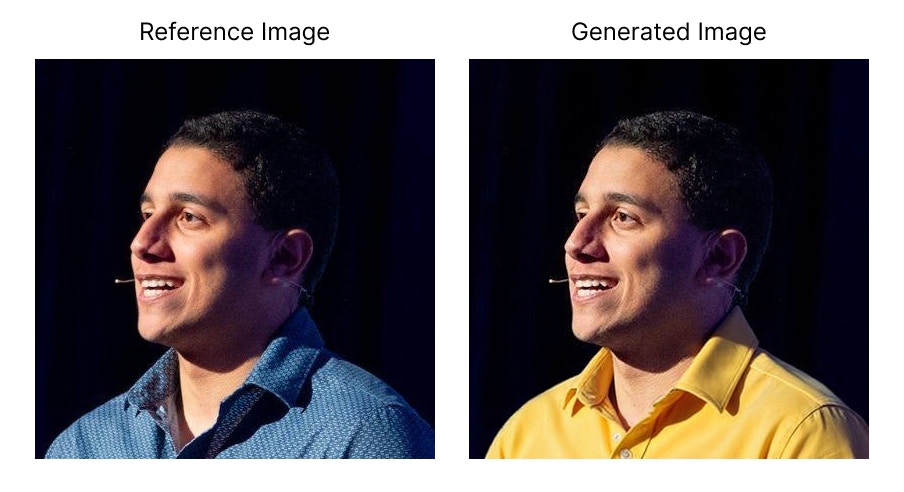
Black Forest Labs has released FLUX Kontext with support on Together AI. These models allow you to generate and edit images through in-context image generation.
Unlike existing text-to-image models, FLUX.1 Kontext allows you to prompt with both text and images, and seamlessly extract and modify visual concepts to produce new, coherent renderings.
The Kontext family includes three models optimized for different use cases: Pro for balanced speed and quality, Max for maximum image fidelity, and Dev for development and experimentation.
## Generating an image
Here's how to use the new Kontext models:
```python Python theme={null}
from together import Together
client = Together()
imageCompletion = client.images.generate(
model="black-forest-labs/FLUX.1-kontext-pro",
width=1536,
height=1024,
steps=28,
prompt="make his shirt yellow",
image_url="https://github.com/nutlope.png",
)
print(imageCompletion.data[0].url)
```
```typescript TypeScript theme={null}
import Together from "together-ai";
const together = new Together();
async function main() {
const response = await together.images.generate({
model: "black-forest-labs/FLUX.1-kontext-pro",
width: 1536,
height: 1024,
steps: 28,
prompt: "make his shirt yellow",
image_url: "https://github.com/nutlope.png",
});
console.log(response.data[0].url);
}
main();
```
```curl cURL theme={null}
curl -X POST "https://api.together.ai/v1/images/generations" \
-H "Authorization: Bearer $TOGETHER_API_KEY" \
-H "Content-Type: application/json" \
-d '{
"model": "black-forest-labs/FLUX.1-kontext-pro",
"width": 1536,
"height": 1024,
"steps": 28,
"prompt": "make his shirt yellow",
"image_url": "https://github.com/nutlope.png"
}'
```
 ## Available Models
Flux Kontext offers different models for various needs:
* **FLUX.1-kontext-pro**: Best balance of speed and quality (recommended)
* **FLUX.1-kontext-max**: Maximum image quality for production use
## Common Use Cases
* **Style Transfer**: Transform photos into different art styles (watercolor, oil painting, etc.)
* **Object Modification**: Change colors, add elements, or modify specific parts of an image
* **Scene Transformation**: Convert daytime to nighttime, change seasons, or alter environments
* **Character Creation**: Transform portraits into different styles or characters
## Key Parameters
Flux Kontext models support the following key parameters:
* `model`: Choose from `black-forest-labs/FLUX.1-kontext-pro` or `black-forest-labs/FLUX.1-kontext-max`
* `prompt`: Text description of the transformation you want to apply
* `image_url`: URL of the reference image to transform
* `aspect_ratio`: Output aspect ratio (e.g., "1:1", "16:9", "9:16", "4:3", "3:2") - alternatively, you can use `width` and `height` for precise pixel dimensions
* `steps`: Number of diffusion steps (default: 28, higher values may improve quality)
* `seed`: Random seed for reproducible results
For complete parameter documentation, see the [Images Overview](/docs/inference/images/overview#parameters).
See all available image models: [Image Models](/docs/serverless/models#image-models)
## Available Models
Flux Kontext offers different models for various needs:
* **FLUX.1-kontext-pro**: Best balance of speed and quality (recommended)
* **FLUX.1-kontext-max**: Maximum image quality for production use
## Common Use Cases
* **Style Transfer**: Transform photos into different art styles (watercolor, oil painting, etc.)
* **Object Modification**: Change colors, add elements, or modify specific parts of an image
* **Scene Transformation**: Convert daytime to nighttime, change seasons, or alter environments
* **Character Creation**: Transform portraits into different styles or characters
## Key Parameters
Flux Kontext models support the following key parameters:
* `model`: Choose from `black-forest-labs/FLUX.1-kontext-pro` or `black-forest-labs/FLUX.1-kontext-max`
* `prompt`: Text description of the transformation you want to apply
* `image_url`: URL of the reference image to transform
* `aspect_ratio`: Output aspect ratio (e.g., "1:1", "16:9", "9:16", "4:3", "3:2") - alternatively, you can use `width` and `height` for precise pixel dimensions
* `steps`: Number of diffusion steps (default: 28, higher values may improve quality)
* `seed`: Random seed for reproducible results
For complete parameter documentation, see the [Images Overview](/docs/inference/images/overview#parameters).
See all available image models: [Image Models](/docs/serverless/models#image-models)