

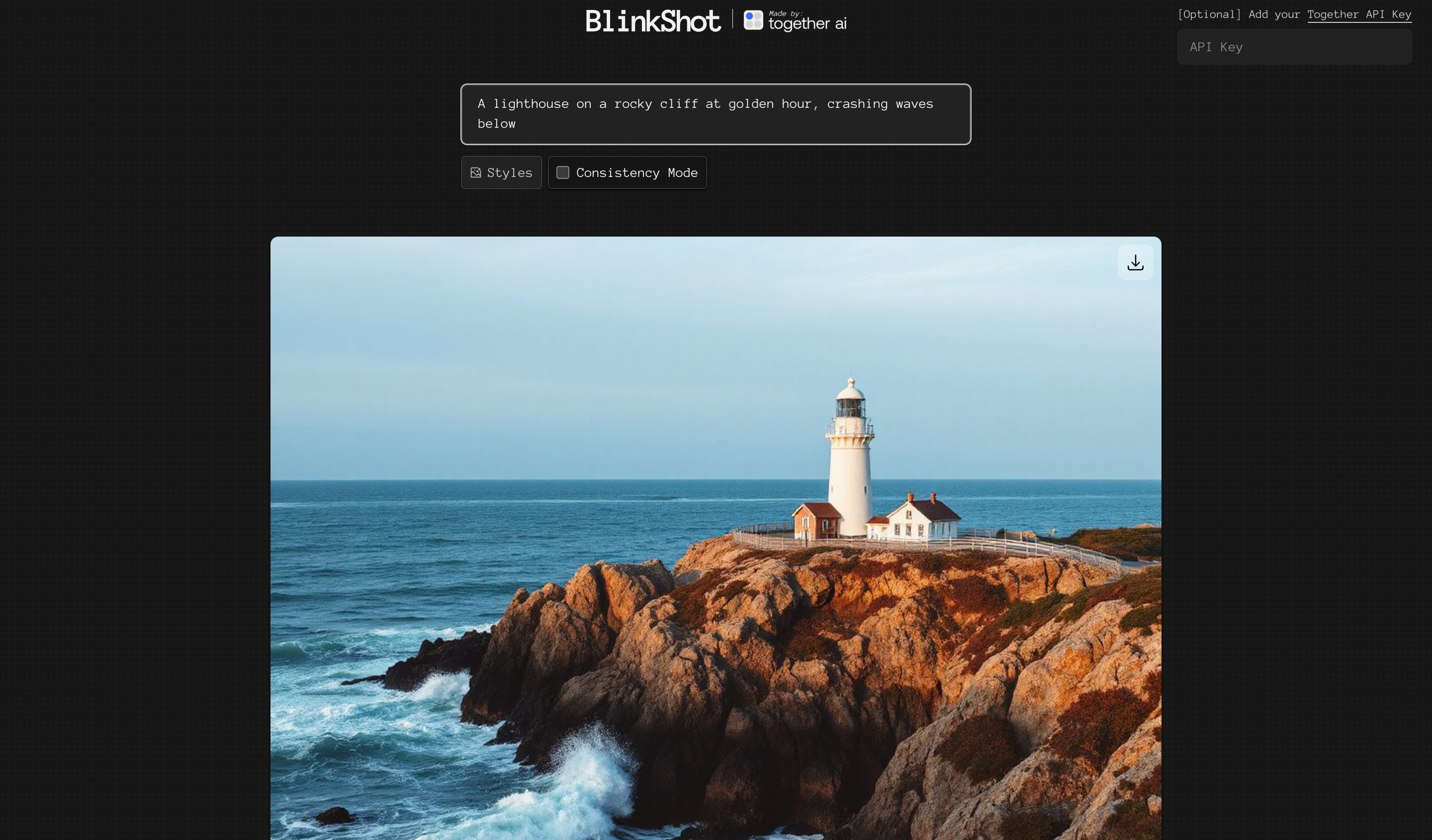
Build the prompt input
The core interaction of BlinkShot is a single textarea where you describe an image. There’s no submit button. Because the model is fast enough to generate images in real time, the app fires a request as you type:useQuery from React Query with the prompt in the queryKey. Whenever the prompt changes, React Query runs the query function again:
placeholderData option keeps the previous image on screen while the next one loads, so the UI never flashes empty between generations.
Generate images in an API route
The query function above calls a Next.js API route. Generating from a server route keeps your Together API key out of the browser. Install the SDK:TOGETHER_API_KEY environment variable, so add it to your .env.local:
.env.local
app/api/generateImage/route.ts. It reads the prompt from the request body and generates an image with Juggernaut Lightning Flux:
app/api/generateImage/route.ts
response_format to "base64" returns the image data inline as b64_json, so the frontend can render it immediately with a data URL instead of waiting on a second request to fetch a hosted file:
Debounce requests
Firing a request on every keystroke wastes generations on half-typed prompts. Debounce the prompt with theuseDebounce hook from @uidotdev/usehooks:
debouncedPrompt in the queryKey means the app waits for a 350 millisecond pause in typing before generating:
Tune quality with steps
The steps parameter controls how many diffusion steps the model runs. More steps produce more detailed images but take longer, which matters when every keystroke can trigger a generation. Juggernaut Lightning Flux is distilled to produce good images in very few steps, and BlinkShot uses 4 as its balance of quality and speed.
Juggernaut Lightning Flux bills through the provider’s own per-request charge rather than a published per-megapixel rate, so raising steps can change what a generation costs. Models that bill per megapixel apply a step multiplier above their default step count. See How image models bill.
Keep images consistent with seed
By default, every generation starts from random noise, so the same prompt produces a different image each time. Passing a fixed seed pins that starting point, so the same prompt and seed reproduce the same image. Repeated runs can differ by a few pixels, but the subject, composition, and details stay the same.
Go beyond real-time generation
BlinkShot is open source, so check out the full code to see the production details this page skips, such as rate limiting and prompt moderation.Next steps
FLUX.2 quickstart
Generate higher-fidelity images with the latest FLUX.2 model family.
Image generation overview
Explore every image model and parameter available on Together AI.