

Architecture
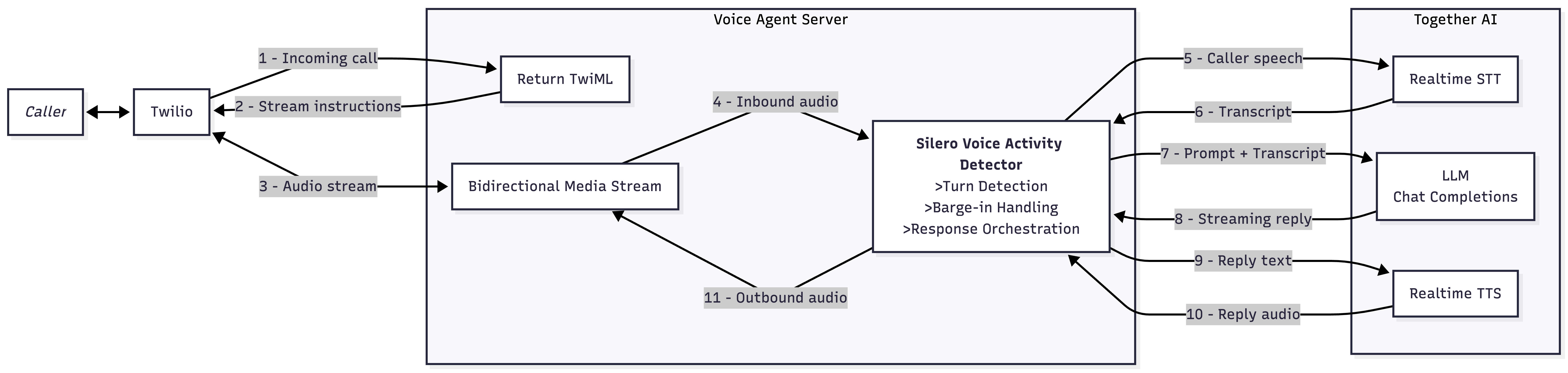
Requirements
Before you start, make sure you have:- Node.js
18+. - A Together AI account and API key.
- A Twilio account with a voice-capable phone number.
- ngrok or another HTTPS tunnel for local testing.
- The Silero VAD ONNX model saved in your project root as
silero_vad.onnx.
Step 1: Create the project
Create a new directory and install the dependencies:Shell
mkdir twilio-voice-agent
cd twilio-voice-agent
npm init -y
npm install express ws dotenv onnxruntime-node
npm install -D typescript tsx @types/node @types/express @types/ws
scripts field in your generated package.json:
package.json
{
  "scripts": {
    "dev": "tsx watch server.ts",
    "start": "tsx server.ts"
  }
}
tsconfig.json:
tsconfig.json
{
  "compilerOptions": {
    "target": "ES2022",
    "module": "ESNext",
    "moduleResolution": "bundler",
    "esModuleInterop": true,
    "strict": true,
    "skipLibCheck": true,
    "outDir": "dist",
    "rootDir": ".",
    "resolveJsonModule": true,
    "types": ["node"],
    "noEmit": true
  },
  "include": ["*.ts"],
  "exclude": ["node_modules", "dist"]
}
Step 2: Add environment variables
Create a.env file:
.env
TOGETHER_API_KEY=your_together_api_key
PORT=3001
PERSONA=kira
STT_MODEL=openai/whisper-large-v3
LLM_MODEL=Qwen/Qwen3.5-9B
TTS_MODEL=hexgrad/Kokoro-82M
TTS_VOICE=af_heart
kira- a support engineer at Together AI.account_exec- an account executive at Together AI.marcus- an engineer at Together AI.
Step 3: Add the audio conversion layer
Createaudio-convert.ts. This file handles:
- mu-law encode and decode - this is needed to convert audio I/O over the phone.
- sample-rate conversion between
8 kHz(needed for phone),16 kHz(needed for STT), and24 kHz(output by TTS). - parsing WAV headers when the first TTS chunk arrives with a WAV header attached.
- converting Twilio chunks into Together STT input.
- converting Together TTS output back into Twilio playback audio.
audio-convert.ts
audio-convert.ts
audio-convert.ts
// G.711 mu-law codec, resampling, and WAV utilities

// Mu-law decode table (256 entries: mulaw byte -> int16 sample)
const MULAW_DECODE_TABLE: Int16Array = (() => {
  const table = new Int16Array(256);
  for (let i = 0; i < 256; i++) {
    const byte = ~i & 0xff;
    const sign = byte & 0x80;
    const exponent = (byte >> 4) & 0x07;
    const mantissa = byte & 0x0f;
    let magnitude = ((mantissa << 3) + 0x84) << exponent;
    magnitude -= 0x84;
    table[i] = sign ? -magnitude : magnitude;
  }
  return table;
})();

// Mu-law encode lookup (maps (sample >> 7) & 0xFF -> exponent)
// prettier-ignore
const EXP_LUT = [
  0,0,1,1,2,2,2,2,3,3,3,3,3,3,3,3,
  4,4,4,4,4,4,4,4,4,4,4,4,4,4,4,4,
  5,5,5,5,5,5,5,5,5,5,5,5,5,5,5,5,
  5,5,5,5,5,5,5,5,5,5,5,5,5,5,5,5,
  6,6,6,6,6,6,6,6,6,6,6,6,6,6,6,6,
  6,6,6,6,6,6,6,6,6,6,6,6,6,6,6,6,
  6,6,6,6,6,6,6,6,6,6,6,6,6,6,6,6,
  6,6,6,6,6,6,6,6,6,6,6,6,6,6,6,6,
  7,7,7,7,7,7,7,7,7,7,7,7,7,7,7,7,
  7,7,7,7,7,7,7,7,7,7,7,7,7,7,7,7,
  7,7,7,7,7,7,7,7,7,7,7,7,7,7,7,7,
  7,7,7,7,7,7,7,7,7,7,7,7,7,7,7,7,
  7,7,7,7,7,7,7,7,7,7,7,7,7,7,7,7,
  7,7,7,7,7,7,7,7,7,7,7,7,7,7,7,7,
  7,7,7,7,7,7,7,7,7,7,7,7,7,7,7,7,
  7,7,7,7,7,7,7,7,7,7,7,7,7,7,7,7,
];

const MULAW_BIAS = 0x84;
const MULAW_CLIP = 32635;

export function mulawDecodeSample(byte: number): number {
  return MULAW_DECODE_TABLE[byte & 0xff];
}

export function mulawEncodeSample(sample: number): number {
  const sign = (sample >> 8) & 0x80;
  if (sign !== 0) sample = -sample;
  if (sample > MULAW_CLIP) sample = MULAW_CLIP;
  sample += MULAW_BIAS;
  const exponent = EXP_LUT[(sample >> 7) & 0xff];
  const mantissa = (sample >> (exponent + 3)) & 0x0f;
  return ~(sign | (exponent << 4) | mantissa) & 0xff;
}

export function mulawDecode(mulaw: Uint8Array): Int16Array {
  const pcm = new Int16Array(mulaw.length);
  for (let i = 0; i < mulaw.length; i++) {
    pcm[i] = MULAW_DECODE_TABLE[mulaw[i]];
  }
  return pcm;
}

export function mulawEncode(pcm: Int16Array): Uint8Array {
  const mulaw = new Uint8Array(pcm.length);
  for (let i = 0; i < pcm.length; i++) {
    mulaw[i] = mulawEncodeSample(pcm[i]);
  }
  return mulaw;
}

export function resample(
  input: Int16Array,
  fromRate: number,
  toRate: number,
): Int16Array {
  if (fromRate === toRate) return input;
  const ratio = fromRate / toRate;
  const outputLength = Math.floor(input.length / ratio);
  const output = new Int16Array(outputLength);

  if (fromRate > toRate) {
    for (let i = 0; i < outputLength; i++) {
      const center = i * ratio;
      const start = Math.max(0, Math.floor(center));
      const end = Math.min(input.length, Math.ceil(center + ratio));
      let sum = 0;
      for (let j = start; j < end; j++) {
        sum += input[j];
      }
      output[i] = Math.round(sum / (end - start));
    }
  } else {
    for (let i = 0; i < outputLength; i++) {
      const srcIdx = i * ratio;
      const low = Math.floor(srcIdx);
      const high = Math.min(low + 1, input.length - 1);
      const frac = srcIdx - low;
      output[i] = Math.round(input[low] * (1 - frac) + input[high] * frac);
    }
  }

  return output;
}

export function wrapWav(
  pcm: Int16Array,
  sampleRate: number,
  channels = 1,
): Buffer {
  const dataSize = pcm.length * 2;
  const header = Buffer.alloc(44);
  header.write("RIFF", 0);
  header.writeUInt32LE(36 + dataSize, 4);
  header.write("WAVE", 8);
  header.write("fmt ", 12);
  header.writeUInt32LE(16, 16);
  header.writeUInt16LE(1, 20);
  header.writeUInt16LE(channels, 22);
  header.writeUInt32LE(sampleRate, 24);
  header.writeUInt32LE(sampleRate * channels * 2, 28);
  header.writeUInt16LE(channels * 2, 32);
  header.writeUInt16LE(16, 34);
  header.write("data", 36);
  header.writeUInt32LE(dataSize, 40);

  const pcmBuf = Buffer.from(pcm.buffer, pcm.byteOffset, pcm.byteLength);
  return Buffer.concat([header, pcmBuf]);
}

export function parseWavHeader(wav: Buffer): {
  sampleRate: number;
  channels: number;
  bitsPerSample: number;
  dataOffset: number;
  dataSize: number;
} {
  if (wav.length < 44) throw new Error("WAV too short");

  let fmtFound = false;
  let sampleRate = 0;
  let channels = 0;
  let bitsPerSample = 0;

  let offset = 12;
  while (offset < wav.length - 8) {
    const chunkId = wav.toString("ascii", offset, offset + 4);
    const chunkSize = wav.readUInt32LE(offset + 4);

    if (chunkId === "fmt ") {
      channels = wav.readUInt16LE(offset + 10);
      sampleRate = wav.readUInt32LE(offset + 12);
      bitsPerSample = wav.readUInt16LE(offset + 22);
      fmtFound = true;
    }

    if (chunkId === "data" && fmtFound) {
      return {
        sampleRate,
        channels,
        bitsPerSample,
        dataOffset: offset + 8,
        dataSize: chunkSize,
      };
    }

    offset += 8 + chunkSize;
    if (chunkSize % 2 !== 0) offset++;
  }

  return {
    sampleRate: wav.readUInt32LE(24),
    channels: wav.readUInt16LE(22),
    bitsPerSample: wav.readUInt16LE(34),
    dataOffset: 44,
    dataSize: wav.readUInt32LE(40),
  };
}

export function extractPcmFromWav(wav: Buffer): {
  pcm: Int16Array;
  sampleRate: number;
} {
  const info = parseWavHeader(wav);
  if (info.bitsPerSample !== 16) {
    throw new Error(`Unsupported WAV bits per sample: ${info.bitsPerSample}`);
  }
  const end = Math.min(info.dataOffset + info.dataSize, wav.length);
  const slice = wav.subarray(info.dataOffset, end);
  const pcm = new Int16Array(
    slice.buffer,
    slice.byteOffset,
    Math.floor(slice.byteLength / 2),
  );
  return { pcm, sampleRate: info.sampleRate };
}

export function computeMulawEnergy(mulaw: Buffer): number {
  if (mulaw.length === 0) return 0;
  let sumSq = 0;
  for (let i = 0; i < mulaw.length; i++) {
    const sample = MULAW_DECODE_TABLE[mulaw[i]];
    sumSq += sample * sample;
  }
  return Math.sqrt(sumSq / mulaw.length);
}

export function mulawToWav16k(mulawBuf: Buffer): Buffer {
  const mulaw = new Uint8Array(mulawBuf);
  const pcm8k = mulawDecode(mulaw);
  const pcm16k = resample(pcm8k, 8000, 16000);
  return wrapWav(pcm16k, 16000);
}

export function mulawChunkToPcm16kBase64(mulawChunk: Buffer): string {
  const pcm8k = mulawDecode(new Uint8Array(mulawChunk));
  const pcm16k = resample(pcm8k, 8000, 16000);
  return Buffer.from(
    pcm16k.buffer,
    pcm16k.byteOffset,
    pcm16k.byteLength,
  ).toString("base64");
}

export function wavToMulaw8k(wav: Buffer): Uint8Array {
  const { pcm, sampleRate } = extractPcmFromWav(wav);
  const pcm8k = resample(pcm, sampleRate, 8000);
  return mulawEncode(pcm8k);
}

export interface PcmS16leStreamState {
  leftover: Uint8Array<ArrayBufferLike>;
  headerBuffer: Uint8Array<ArrayBufferLike>;
  headerProcessed: boolean;
}

export function createPcmS16leStreamState(): PcmS16leStreamState {
  return {
    leftover: new Uint8Array(0),
    headerBuffer: new Uint8Array(0),
    headerProcessed: false,
  };
}

function concatUint8Arrays(
  a: Uint8Array<ArrayBufferLike>,
  b: Uint8Array<ArrayBufferLike>,
): Uint8Array<ArrayBufferLike> {
  if (a.length === 0) return new Uint8Array(b);
  if (b.length === 0) return new Uint8Array(a);
  const combined = new Uint8Array(a.length + b.length);
  combined.set(a, 0);
  combined.set(b, a.length);
  return combined;
}

export function pcmS16leChunkToMulaw8k(
  base64Pcm: string,
  fromRate: number,
  state: PcmS16leStreamState,
): { mulaw: Uint8Array; state: PcmS16leStreamState } {
  let pcmBytes: Uint8Array<ArrayBufferLike> = new Uint8Array(
    Buffer.from(base64Pcm, "base64"),
  );

  if (!state.headerProcessed) {
    const headerBuffer = concatUint8Arrays(state.headerBuffer, pcmBytes);

    if (headerBuffer.length < 4) {
      return {
        mulaw: new Uint8Array(0),
        state: { ...state, headerBuffer },
      };
    }

    const isWavHeader =
      headerBuffer[0] === 0x52 &&
      headerBuffer[1] === 0x49 &&
      headerBuffer[2] === 0x46 &&
      headerBuffer[3] === 0x46;

    if (isWavHeader) {
      if (headerBuffer.length < 44) {
        return {
          mulaw: new Uint8Array(0),
          state: { ...state, headerBuffer },
        };
      }

      try {
        const wavHeader = parseWavHeader(Buffer.from(headerBuffer));
        if (headerBuffer.length < wavHeader.dataOffset) {
          return {
            mulaw: new Uint8Array(0),
            state: { ...state, headerBuffer },
          };
        }

        pcmBytes = headerBuffer.subarray(wavHeader.dataOffset);
      } catch {
        return {
          mulaw: new Uint8Array(0),
          state: { ...state, headerBuffer },
        };
      }
    } else {
      pcmBytes = headerBuffer;
    }

    state = {
      leftover: state.leftover,
      headerBuffer: new Uint8Array(0),
      headerProcessed: true,
    };
  }

  if (state.leftover.length > 0) {
    pcmBytes = concatUint8Arrays(state.leftover, pcmBytes);
  }

  const bytesPerSample = 2;
  const remainder = pcmBytes.length % bytesPerSample;
  let newLeftover: Uint8Array<ArrayBufferLike> = new Uint8Array(0);
  if (remainder !== 0) {
    newLeftover = new Uint8Array(pcmBytes.subarray(pcmBytes.length - remainder));
    pcmBytes = pcmBytes.subarray(0, pcmBytes.length - remainder);
  }

  if (pcmBytes.length < bytesPerSample) {
    return {
      mulaw: new Uint8Array(0),
      state: { ...state, leftover: newLeftover },
    };
  }

  const sampleCount = pcmBytes.length / bytesPerSample;
  const int16 = new Int16Array(sampleCount);
  const pcmView = Buffer.from(pcmBytes);
  for (let i = 0; i < sampleCount; i++) {
    int16[i] = pcmView.readInt16LE(i * bytesPerSample);
  }

  const pcm8k = resample(int16, fromRate, 8000);
  const mulaw = mulawEncode(pcm8k);

  return {
    mulaw,
    state: { ...state, leftover: newLeftover },
  };
}
Step 4: Add local voice activity detection
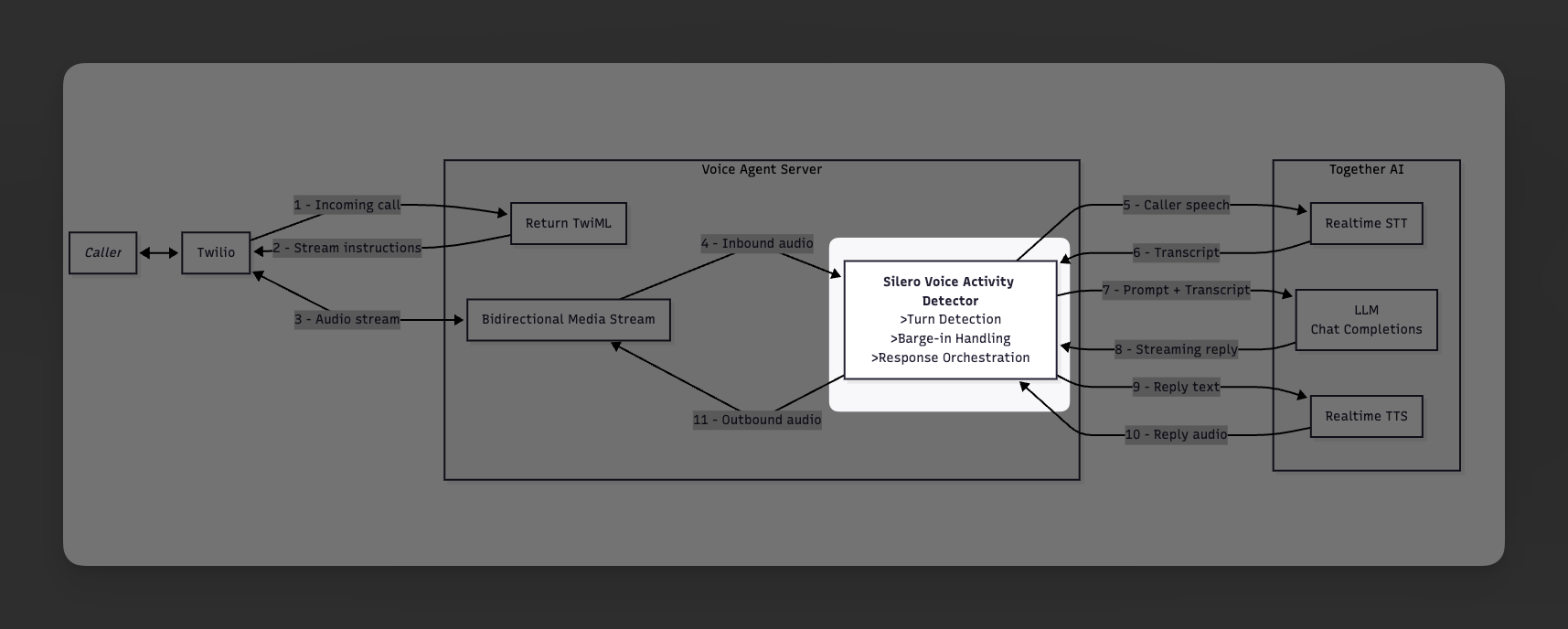
vad.ts. This file wraps the Silero VAD ONNX model and runs it locally on the CPU via onnxruntime-node.
Silero VAD is a lightweight voice activity detection model that takes a short window of audio and returns a probability between 0 and 1 indicating whether that window contains speech. In this project it serves two purposes:
- Turn-boundary detection: While the server is listening, VAD probabilities decide when the caller has started speaking and when they have stopped. Once speech ends (probability drops below a threshold for long enough), the server commits the buffered STT audio and triggers a reply.
- Barge-in detection: While the assistant is speaking, VAD probabilities detect whether the caller is trying to interrupt. If the probability exceeds a higher threshold for several consecutive frames, the server immediately clears Twilio’s playback buffer and switches back to listening.
SileroVad instance with independent RNN hidden state so one caller’s audio never bleeds into another’s detection.
vad.ts
vad.ts
vad.ts
// Silero VAD wrapper for barge-in detection on Twilio 8kHz mulaw audio.
//
// Uses the Silero VAD ONNX model (v5) which natively supports 8kHz input
// with 256-sample windows (32ms per frame). The model runs on CPU via
// onnxruntime-node with <1ms inference per frame.

import { InferenceSession, Tensor } from "onnxruntime-node";
import { fileURLToPath } from "url";
import { mulawDecode } from "./audio-convert";

const SAMPLE_RATE = 8000;
const WINDOW_SIZE = 256;
const CONTEXT_SIZE = 32;

let sharedSession: InferenceSession | null = null;
let loadPromise: Promise<InferenceSession> | null = null;

async function getSession(): Promise<InferenceSession> {
  if (sharedSession) return sharedSession;
  if (!loadPromise) {
    const modelPath = fileURLToPath(
      new URL("./silero_vad.onnx", import.meta.url),
    );
    loadPromise = InferenceSession.create(modelPath, {
      interOpNumThreads: 1,
      intraOpNumThreads: 1,
      executionMode: "sequential",
      executionProviders: [{ name: "cpu" }],
    }).then((session) => {
      sharedSession = session;
      console.log("[VAD] Silero VAD model loaded");
      return session;
    });
  }
  return loadPromise;
}

export class SileroVad {
  private session: InferenceSession;
  private rnnState: Float32Array;
  private context: Float32Array;
  private inputBuffer: Float32Array;
  private sampleRateNd: BigInt64Array;
  private sampleBuf: Float32Array;
  private sampleBufLen = 0;

  private constructor(session: InferenceSession) {
    this.session = session;
    this.rnnState = new Float32Array(2 * 1 * 128);
    this.context = new Float32Array(CONTEXT_SIZE);
    this.inputBuffer = new Float32Array(CONTEXT_SIZE + WINDOW_SIZE);
    this.sampleRateNd = BigInt64Array.from([BigInt(SAMPLE_RATE)]);
    this.sampleBuf = new Float32Array(WINDOW_SIZE + 160);
  }

  static async create(): Promise<SileroVad> {
    const session = await getSession();
    return new SileroVad(session);
  }

  static warmup(): Promise<void> {
    return getSession().then(() => {});
  }

  resetState(): void {
    this.rnnState.fill(0);
    this.context.fill(0);
    this.sampleBuf.fill(0);
    this.sampleBufLen = 0;
  }

  async processMulawChunk(mulawChunk: Buffer): Promise<number | null> {
    const pcm = mulawDecode(new Uint8Array(mulawChunk));

    for (let i = 0; i < pcm.length; i++) {
      this.sampleBuf[this.sampleBufLen++] = pcm[i] / 32767;
    }

    if (this.sampleBufLen < WINDOW_SIZE) {
      return null;
    }

    const prob = await this.infer(this.sampleBuf.subarray(0, WINDOW_SIZE));

    const remaining = this.sampleBufLen - WINDOW_SIZE;
    if (remaining > 0) {
      this.sampleBuf.copyWithin(0, WINDOW_SIZE, this.sampleBufLen);
    }
    this.sampleBufLen = remaining;

    return prob;
  }

  private async infer(audioWindow: Float32Array): Promise<number> {
    this.inputBuffer.set(this.context, 0);
    this.inputBuffer.set(audioWindow, CONTEXT_SIZE);

    const result = await this.session.run({
      input: new Tensor("float32", this.inputBuffer, [
        1,
        CONTEXT_SIZE + WINDOW_SIZE,
      ]),
      state: new Tensor("float32", this.rnnState, [2, 1, 128]),
      sr: new Tensor("int64", this.sampleRateNd),
    });

    this.rnnState.set(result.stateN!.data as Float32Array);
    this.context = this.inputBuffer.slice(-CONTEXT_SIZE);
    return (result.output!.data as Float32Array).at(0)!;
  }
}
Step 5: Build the realtime STT -> LLM -> TTS pipeline
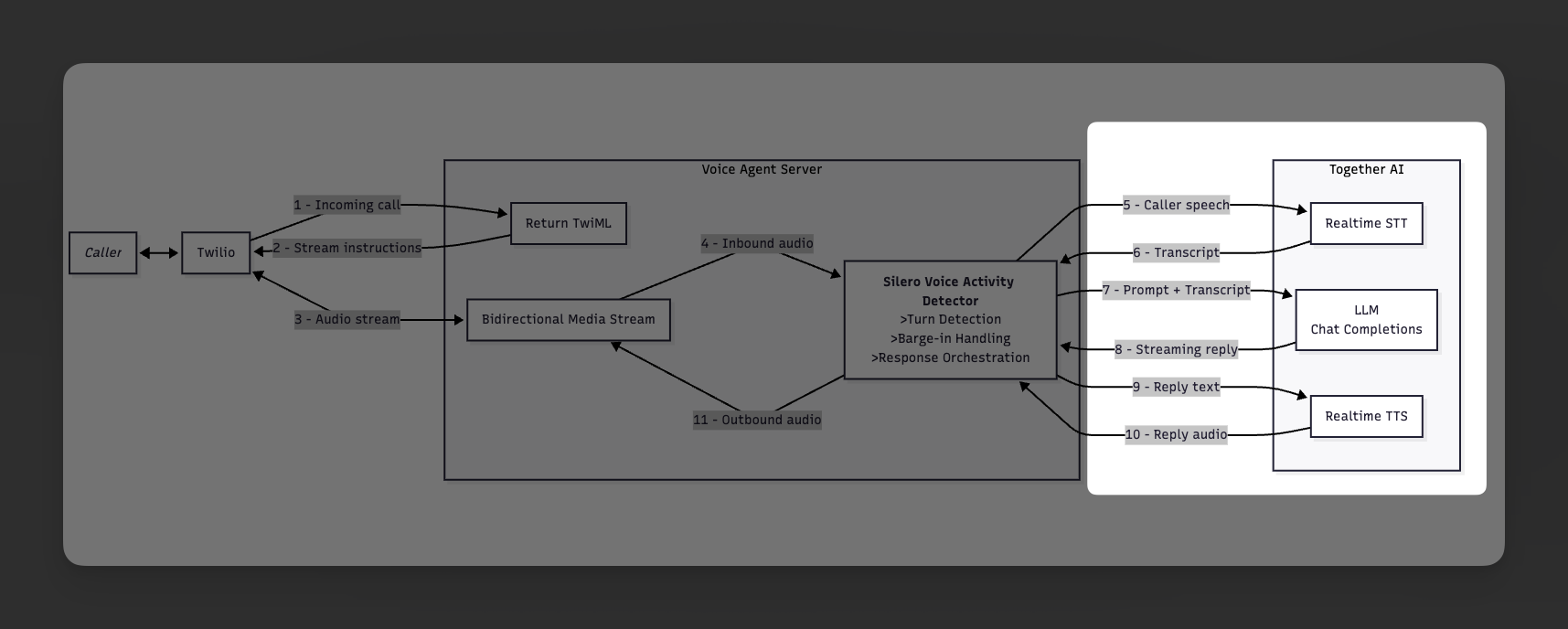
pipeline.ts. This file does four jobs:
- Defines the personas and system prompts used by the assistant.
- Maintains a long-lived realtime STT WebSocket per call.
- Maintains a long-lived realtime TTS WebSocket per call.
- Orchestrates each turn: commit STT, stream chat completions, split by sentence, and synthesize those sentences immediately.
pipeline.ts
pipeline.ts
pipeline.ts
import WebSocket from "ws";
import {
  createPcmS16leStreamState,
  mulawChunkToPcm16kBase64,
  pcmS16leChunkToMulaw8k,
} from "./audio-convert";

export type ChatMessage = { role: string; content: string };

export interface PipelineConfig {
  persona: string;
  sttModel: string;
  llmModel: string;
  ttsModel: string;
  ttsVoice: string;
}

const TOGETHER_CONTEXT = `
Together AI is an AI platform for building and running production applications with open and frontier models.
It can cover chat, speech-to-text, text-to-speech, image workflows, fine-tuning, dedicated inference, containers, and GPU clusters.
Keep answers short, practical, and natural for a live phone call.
If you are unsure about an exact fact, say you cannot confirm it.
`;

const BASE_STYLE = `
You are on a live phone call.
Everything you say will be read aloud by a text-to-speech model.
Write for the ear, not the screen.
Prefer short sentences and plain language.
Keep responses brief: usually one or two short sentences, and at most three.
Do not use bullet points, markdown, or long lists.
Do not use decorative punctuation, code fences, slash-heavy phrasing, or raw model IDs unless the caller explicitly asks for them.
Spell out important numbers in words when that makes speech sound more natural.
If you are unsure, say "I don't know" or "I can't confirm that."
`;

const PERSONAS: Record<string, string> = {
  kira: `You are Kira, a Together AI solutions engineer on a phone call.
You are friendly, practical, technically sharp, and good at explaining things simply.
${BASE_STYLE}
${TOGETHER_CONTEXT}`,

  account_exec: `You are Alex, a Together AI account executive on a phone call.
You are consultative, crisp, business-focused, and good at connecting technical capabilities to outcomes.
${BASE_STYLE}
${TOGETHER_CONTEXT}`,

  marcus: `You are Marcus, a senior technical architect at Together AI on a phone call.
You are precise, calm, technical, and good at explaining trade-offs without overexplaining.
${BASE_STYLE}
${TOGETHER_CONTEXT}`,
};

function getApiKey(): string {
  const raw = process.env.TOGETHER_API_KEY;
  if (!raw) throw new Error("Missing TOGETHER_API_KEY");
  return raw.trim().replace(/^"(.*)"$/, "$1").replace(/^'(.*)'$/, "$1");
}

const BASE_URL = "https://api.together.ai/v1";

export class RealtimeSttSession {
  private ws: WebSocket | null = null;
  private sessionReady = false;
  private connectPromise: Promise<void> | null = null;
  private connectResolve: (() => void) | null = null;
  private connectReject: ((err: Error) => void) | null = null;
  private connectTimer: NodeJS.Timeout | null = null;
  private keepaliveTimer: NodeJS.Timeout | null = null;
  private destroyed = false;

  private completedTranscripts: string[] = [];
  private lastDelta = "";

  private commitResolve: (() => void) | null = null;
  private commitTimer: NodeJS.Timeout | null = null;

  constructor(private readonly config: PipelineConfig) {}

  warmup(): Promise<void> {
    return this.ensureConnected();
  }

  sendAudio(mulawChunk: Buffer): void {
    if (
      !this.ws ||
      this.ws.readyState !== WebSocket.OPEN ||
      !this.sessionReady
    ) {
      return;
    }

    const base64 = mulawChunkToPcm16kBase64(mulawChunk);
    try {
      this.ws.send(
        JSON.stringify({ type: "input_audio_buffer.append", audio: base64 }),
      );
    } catch {
      // Ignore send failures. The next turn boundary will reconnect if needed.
    }
  }

  async commitAndGetTranscript(): Promise<string> {
    await this.ensureConnected();

    if (!this.lastDelta.trim()) {
      const text = this.collectAndClear();
      console.log(`[STT-WS] Commit (fast path, 0ms): "${text}"`);
      return text;
    }

    const commitStart = performance.now();
    console.log(
      `[STT-WS] Commit (waiting for: "${this.lastDelta.trim()}")`,
    );

    try {
      this.ws!.send(JSON.stringify({ type: "input_audio_buffer.commit" }));
    } catch {
      return this.collectAndClear();
    }

    return new Promise<string>((resolve) => {
      this.commitTimer = setTimeout(() => {
        this.commitResolve = null;
        this.commitTimer = null;
        const text = this.collectAndClear();
        const ms = Math.round(performance.now() - commitStart);
        console.log(`[STT-WS] Commit timeout (${ms}ms): "${text}"`);
        resolve(text);
      }, 200);

      this.commitResolve = () => {
        if (this.commitTimer) {
          clearTimeout(this.commitTimer);
          this.commitTimer = null;
        }
        this.commitResolve = null;
        const text = this.collectAndClear();
        const ms = Math.round(performance.now() - commitStart);
        console.log(`[STT-WS] Commit completed (${ms}ms): "${text}"`);
        resolve(text);
      };
    });
  }

  clearAudio(): void {
    this.completedTranscripts = [];
    this.lastDelta = "";
    this.failPendingCommit();

    if (this.ws && this.ws.readyState === WebSocket.OPEN) {
      try {
        this.ws.send(JSON.stringify({ type: "input_audio_buffer.clear" }));
      } catch {
        // ignore
      }
    }
  }

  close(): void {
    this.destroyed = true;
    this.clearAudio();
    this.destroySocket(new Error("STT session closed"));
  }

  private collectAndClear(): string {
    const parts = [...this.completedTranscripts];
    if (this.lastDelta.trim()) {
      parts.push(this.lastDelta.trim());
    }
    const text = parts.join(" ");
    this.completedTranscripts = [];
    this.lastDelta = "";
    return text;
  }

  private async ensureConnected(): Promise<void> {
    if (this.destroyed) throw new Error("STT session closed");

    if (
      this.ws &&
      this.sessionReady &&
      this.ws.readyState === WebSocket.OPEN
    ) {
      return;
    }

    if (this.connectPromise) return this.connectPromise;

    const apiKey = getApiKey();
    const wsUrl =
      `wss://api.together.ai/v1/realtime` +
      `?model=${encodeURIComponent(this.config.sttModel)}` +
      `&input_audio_format=pcm_s16le_16000`;

    const pendingConnect = new Promise<void>((resolve, reject) => {
      this.connectResolve = resolve;
      this.connectReject = reject;

      this.connectTimer = setTimeout(() => {
        const err = new Error("STT WebSocket connection timeout after 10s");
        this.rejectConnect(err);
        this.destroySocket(err);
      }, 10_000);

      this.ws = new WebSocket(wsUrl, {
        headers: {
          Authorization: `Bearer ${apiKey}`,
          "OpenAI-Beta": "realtime=v1",
        },
      });
      this.sessionReady = false;

      this.ws.on("message", (data) => this.handleMessage(data));
      this.ws.on("error", (err) => this.handleSocketError(err as Error));
      this.ws.on("close", (code, reason) =>
        this.handleSocketClose(code, reason.toString()),
      );
    });

    this.connectPromise = pendingConnect.finally(() => {
      this.connectPromise = null;
    });

    return this.connectPromise;
  }

  private handleMessage(data: WebSocket.Data) {
    let msg: Record<string, unknown>;
    try {
      const raw = Buffer.isBuffer(data) ? data.toString("utf8") : String(data);
      msg = JSON.parse(raw) as Record<string, unknown>;
    } catch {
      return;
    }

    switch (msg.type) {
      case "session.created":
        this.sessionReady = true;
        this.startKeepalive();
        this.resolveConnect();
        console.log("[STT-WS] Session created");
        return;

      case "conversation.item.input_audio_transcription.delta":
        this.lastDelta = (msg.delta as string) || "";
        return;

      case "conversation.item.input_audio_transcription.completed": {
        const transcript = (msg.transcript as string) || "";
        console.log(`[STT-WS] Completed: "${transcript}"`);
        if (transcript.trim()) {
          this.completedTranscripts.push(transcript.trim());
        }
        this.lastDelta = "";
        if (this.commitResolve) this.commitResolve();
        return;
      }

      case "conversation.item.input_audio_transcription.failed":
        console.log("[STT-WS] Transcription failed");
        this.lastDelta = "";
        if (this.commitResolve) this.commitResolve();
        return;

      case "error": {
        const message =
          (msg.error as Record<string, unknown> | undefined)?.message ||
          "STT WebSocket error";
        console.error(`[STT-WS] Error: ${message}`);
        const err = new Error(String(message));
        this.failPendingCommit();
        this.destroySocket(err);
        return;
      }
    }
  }

  private handleSocketError(err: Error) {
    console.error("[STT-WS] Socket error:", err.message);
    this.rejectConnect(err);
    this.failPendingCommit();
    this.destroySocket(err);
  }

  private handleSocketClose(code: number, reason: string) {
    const closeReason = reason
      ? `STT WebSocket closed (${code}): ${reason}`
      : `STT WebSocket closed (${code})`;
    console.log(`[STT-WS] ${closeReason}`);

    if (!this.destroyed) {
      const err = new Error(closeReason);
      this.rejectConnect(err);
    }
    this.failPendingCommit();
    this.clearSocketState();
  }

  private failPendingCommit() {
    if (this.commitTimer) {
      clearTimeout(this.commitTimer);
      this.commitTimer = null;
    }
    if (this.commitResolve) {
      this.commitResolve();
      this.commitResolve = null;
    }
  }

  private resolveConnect() {
    if (!this.connectResolve) return;
    const resolve = this.connectResolve;
    this.connectResolve = null;
    this.connectReject = null;
    if (this.connectTimer) {
      clearTimeout(this.connectTimer);
      this.connectTimer = null;
    }
    resolve();
  }

  private rejectConnect(err: Error) {
    if (!this.connectReject) return;
    const reject = this.connectReject;
    this.connectResolve = null;
    this.connectReject = null;
    if (this.connectTimer) {
      clearTimeout(this.connectTimer);
      this.connectTimer = null;
    }
    reject(err);
  }

  private startKeepalive() {
    this.stopKeepalive();
    this.keepaliveTimer = setInterval(() => {
      if (this.ws && this.ws.readyState === WebSocket.OPEN) {
        try {
          this.ws.ping();
        } catch {
          // ignore
        }
      }
    }, 15_000);
  }

  private stopKeepalive() {
    if (this.keepaliveTimer) {
      clearInterval(this.keepaliveTimer);
      this.keepaliveTimer = null;
    }
  }

  private clearSocketState() {
    this.stopKeepalive();
    this.ws = null;
    this.sessionReady = false;
    if (this.connectTimer) {
      clearTimeout(this.connectTimer);
      this.connectTimer = null;
    }
    this.connectResolve = null;
    this.connectReject = null;
  }

  private destroySocket(err?: Error) {
    const ws = this.ws;
    if (err) this.rejectConnect(err);
    this.clearSocketState();
    if (!ws) return;
    ws.removeAllListeners();
    try {
      if (
        ws.readyState === WebSocket.OPEN ||
        ws.readyState === WebSocket.CONNECTING
      ) {
        ws.close();
      }
    } catch {
      // ignore
    }
  }
}

const TTS_SAMPLE_RATE = 24000;

interface TtsJob {
  aborted: () => boolean;
  completionTimer: NodeJS.Timeout | null;
  itemId: string | null;
  resolve: () => void;
  reject: (err: Error) => void;
  sawAudio: boolean;
  streamState: ReturnType<typeof createPcmS16leStreamState>;
  sentAt: number;
}

export class RealtimeTtsSession {
  private ws: WebSocket | null = null;
  private sessionReady = false;
  private connectPromise: Promise<void> | null = null;
  private connectResolve: (() => void) | null = null;
  private connectReject: ((err: Error) => void) | null = null;
  private connectTimer: NodeJS.Timeout | null = null;
  private currentJob: TtsJob | null = null;
  private queue: Promise<void> = Promise.resolve();
  private destroyed = false;

  constructor(
    private readonly config: PipelineConfig,
    private readonly sendAudio: (mulaw8k: Uint8Array) => void,
  ) {}

  warmup(): Promise<void> {
    return this.ensureConnected();
  }

  speak(text: string, aborted: () => boolean): Promise<void> {
    const run = async () => {
      if (!text.trim() || aborted() || this.destroyed) return;
      await this.speakOverWebSocket(text, aborted);
    };

    const promise = this.queue.then(run, run);
    this.queue = promise.catch(() => {});
    return promise;
  }

  interrupt() {
    const resetError = new Error("TTS interrupted");

    if (this.ws && this.ws.readyState === WebSocket.OPEN) {
      try {
        this.ws.send(JSON.stringify({ type: "input_text_buffer.clear" }));
      } catch {
        // ignore send failures during interruption
      }
    }

    this.failCurrentJob(resetError);
    this.destroySocket(resetError);
  }

  close() {
    const closeError = new Error("TTS session closed");
    this.destroyed = true;
    this.failCurrentJob(closeError);
    this.destroySocket(closeError);
  }

  private async speakOverWebSocket(
    text: string,
    aborted: () => boolean,
  ): Promise<void> {
    await this.ensureConnected();

    if (aborted() || this.destroyed) return;

    return new Promise<void>((resolve, reject) => {
      if (!this.ws || this.ws.readyState !== WebSocket.OPEN || !this.sessionReady) {
        reject(new Error("TTS WebSocket not ready"));
        return;
      }

      this.currentJob = {
        aborted,
        completionTimer: null,
        itemId: null,
        resolve,
        reject,
        sawAudio: false,
        streamState: createPcmS16leStreamState(),
        sentAt: performance.now(),
      };

      try {
        this.ws.send(JSON.stringify({ type: "input_text_buffer.append", text }));
        this.ws.send(JSON.stringify({ type: "input_text_buffer.commit" }));
      } catch (err) {
        this.failCurrentJob(
          err instanceof Error ? err : new Error(String(err)),
        );
        this.destroySocket(
          err instanceof Error ? err : new Error(String(err)),
        );
      }
    });
  }

  private async ensureConnected(): Promise<void> {
    if (this.destroyed) {
      throw new Error("TTS session closed");
    }

    if (this.ws && this.sessionReady && this.ws.readyState === WebSocket.OPEN) {
      return;
    }

    if (this.connectPromise) {
      return this.connectPromise;
    }

    const apiKey = getApiKey();
    const wsUrl =
      `wss://api.together.ai/v1/audio/speech/websocket` +
      `?model=${encodeURIComponent(this.config.ttsModel)}` +
      `&voice=${encodeURIComponent(this.config.ttsVoice)}`;

    const pendingConnect = new Promise<void>((resolve, reject) => {
      this.connectResolve = resolve;
      this.connectReject = reject;

      this.connectTimer = setTimeout(() => {
        const err = new Error("TTS WebSocket connection timeout after 10s");
        this.rejectConnect(err);
        this.destroySocket(err);
      }, 10_000);

      this.ws = new WebSocket(wsUrl, {
        headers: { Authorization: `Bearer ${apiKey}` },
      });
      this.sessionReady = false;

      this.ws.on("message", (data) => this.handleMessage(data));
      this.ws.on("error", (err) => this.handleSocketError(err as Error));
      this.ws.on("close", (code, reason) =>
        this.handleSocketClose(code, reason.toString()),
      );
    });

    this.connectPromise = pendingConnect.finally(() => {
      this.connectPromise = null;
    });

    return this.connectPromise;
  }

  private handleMessage(data: WebSocket.Data) {
    let msg: Record<string, unknown>;

    try {
      const raw = Buffer.isBuffer(data) ? data.toString("utf8") : String(data);
      msg = JSON.parse(raw) as Record<string, unknown>;
    } catch {
      return;
    }

    switch (msg.type) {
      case "session.created":
        this.sessionReady = true;
        this.resolveConnect();
        console.log("[TTS-WS] Session created");
        return;

      case "conversation.item.input_text.received":
        return;

      case "conversation.item.audio_output.delta":
        this.handleAudioDelta(msg);
        return;

      case "conversation.item.audio_output.done":
        this.handleAudioDone(msg);
        return;

      case "conversation.item.tts.failed": {
        const message =
          (msg.error as Record<string, unknown> | undefined)?.message ||
          "TTS WebSocket failed";
        const err = new Error(String(message));
        this.failCurrentJob(err);
        this.destroySocket(err);
        return;
      }

      case "error": {
        const message =
          (msg.error as Record<string, unknown> | undefined)?.message ||
          "TTS WebSocket error";
        const err = new Error(String(message));
        this.failCurrentJob(err);
        this.destroySocket(err);
        return;
      }
    }
  }

  private handleAudioDelta(msg: Record<string, unknown>) {
    const job = this.currentJob;
    if (!job || job.aborted()) return;

    const itemId = typeof msg.item_id === "string" ? msg.item_id : null;
    if (job.itemId && itemId && itemId !== job.itemId) return;
    if (!job.itemId && itemId) job.itemId = itemId;

    this.clearJobCompletionTimer(job);

    const delta = typeof msg.delta === "string" ? msg.delta : null;
    if (!delta) return;

    const result = pcmS16leChunkToMulaw8k(delta, TTS_SAMPLE_RATE, job.streamState);
    job.streamState = result.state;

    if (result.mulaw.length > 0) {
      if (!job.sawAudio) {
        const ms = Math.round(performance.now() - job.sentAt);
        console.log(`[TTS-WS] First audio chunk (${ms}ms after send)`);
      }
      job.sawAudio = true;
      this.sendAudio(result.mulaw);
    }
  }

  private handleAudioDone(msg: Record<string, unknown>) {
    const job = this.currentJob;
    if (!job) return;

    const itemId = typeof msg.item_id === "string" ? msg.item_id : null;
    if (job.itemId && itemId && itemId !== job.itemId) return;
    if (!job.itemId && itemId) job.itemId = itemId;

    this.clearJobCompletionTimer(job);
    job.completionTimer = setTimeout(() => {
      if (this.currentJob !== job) return;

      if (!job.sawAudio) {
        const err = new Error("TTS WebSocket completed without audio");
        this.failCurrentJob(err);
        this.destroySocket(err);
        return;
      }

      this.finishCurrentJob();
    }, 500);
  }

  private handleSocketError(err: Error) {
    console.error("[TTS-WS] Error:", err.message);
    this.rejectConnect(err);
    this.failCurrentJob(err);
    this.destroySocket(err);
  }

  private handleSocketClose(code: number, reason: string) {
    const closeReason = reason
      ? `TTS WebSocket closed (${code}): ${reason}`
      : `TTS WebSocket closed (${code})`;

    if (!this.destroyed) {
      const err = new Error(closeReason);
      this.rejectConnect(err);
      this.failCurrentJob(err);
    }

    this.clearSocketState();
  }

  private finishCurrentJob() {
    const job = this.currentJob;
    if (!job) return;
    this.clearJobCompletionTimer(job);
    this.currentJob = null;
    job.resolve();
  }

  private failCurrentJob(err: Error) {
    const job = this.currentJob;
    if (!job) return;
    this.clearJobCompletionTimer(job);
    this.currentJob = null;
    job.reject(err);
  }

  private clearJobCompletionTimer(job: TtsJob) {
    if (!job.completionTimer) return;
    clearTimeout(job.completionTimer);
    job.completionTimer = null;
  }

  private resolveConnect() {
    if (!this.connectResolve) return;
    const resolve = this.connectResolve;
    this.connectResolve = null;
    this.connectReject = null;
    if (this.connectTimer) {
      clearTimeout(this.connectTimer);
      this.connectTimer = null;
    }
    resolve();
  }

  private rejectConnect(err: Error) {
    if (!this.connectReject) return;
    const reject = this.connectReject;
    this.connectResolve = null;
    this.connectReject = null;
    if (this.connectTimer) {
      clearTimeout(this.connectTimer);
      this.connectTimer = null;
    }
    reject(err);
  }

  private clearSocketState() {
    this.ws = null;
    this.sessionReady = false;
    if (this.connectTimer) {
      clearTimeout(this.connectTimer);
      this.connectTimer = null;
    }
    this.connectResolve = null;
    this.connectReject = null;
  }

  private destroySocket(err?: Error) {
    const ws = this.ws;
    if (err) {
      this.rejectConnect(err);
    }
    this.clearSocketState();
    if (!ws) return;

    ws.removeAllListeners();

    try {
      if (ws.readyState === WebSocket.OPEN || ws.readyState === WebSocket.CONNECTING) {
        ws.close();
      }
    } catch {
      // ignore
    }
  }
}

export async function processConversationTurn(
  sttSession: RealtimeSttSession,
  history: ChatMessage[],
  config: PipelineConfig,
  ttsSession: RealtimeTtsSession,
  aborted: () => boolean,
): Promise<{ transcript: string; reply: string } | null> {
  const turnStart = performance.now();
  console.log("[Pipeline] -- Turn started --");

  const sttStart = performance.now();
  const transcript = await sttSession.commitAndGetTranscript();
  const sttMs = Math.round(performance.now() - sttStart);

  if (!transcript.trim()) {
    console.log("[Pipeline] STT returned empty");
    return null;
  }

  console.log(`[Pipeline] STT (${sttMs}ms): "${transcript}"`);

  const systemPrompt = PERSONAS[config.persona] || PERSONAS.kira;
  const messages: ChatMessage[] = [
    { role: "system", content: systemPrompt },
    ...history,
    { role: "user", content: transcript },
  ];

  const llmStart = performance.now();
  const llmRes = await fetch(`${BASE_URL}/chat/completions`, {
    method: "POST",
    headers: {
      Authorization: `Bearer ${getApiKey()}`,
      "Content-Type": "application/json",
    },
    body: JSON.stringify({
      model: config.llmModel,
      messages,
      temperature: 0.2,
      stream: true,
    }),
  });

  if (!llmRes.ok) {
    const errText = await llmRes.text().catch(() => "");
    throw new Error(`LLM error (${llmRes.status}): ${errText}`);
  }

  const reader = llmRes.body!.getReader();
  const decoder = new TextDecoder();
  let sseBuffer = "";
  let fullReply = "";
  let sentenceBuffer = "";
  let firstTokenLogged = false;
  let firstSentenceLogged = false;

  let ttsChain = Promise.resolve();

  const enqueueSentence = (sentence: string) => {
    if (!firstSentenceLogged) {
      firstSentenceLogged = true;
      console.log(
        `[Pipeline] First sentence (LLM +${Math.round(performance.now() - llmStart)}ms, turn +${Math.round(performance.now() - turnStart)}ms): "${sentence}"`,
      );
    }

    ttsChain = ttsChain
      .catch(() => {})
      .then(async () => {
        if (aborted()) return;
        await ttsSession.speak(sentence, aborted);
      });
  };

  while (true) {
    const { done, value } = await reader.read();
    if (done) break;
    if (aborted()) {
      reader.cancel();
      break;
    }

    sseBuffer += decoder.decode(value, { stream: true });
    const lines = sseBuffer.split("\n");
    sseBuffer = lines.pop() || "";

    for (const line of lines) {
      if (!line.startsWith("data: ")) continue;
      const data = line.slice(6);
      if (data === "[DONE]") continue;

      try {
        const parsed = JSON.parse(data);
        const content = parsed.choices?.[0]?.delta?.content;
        if (content) {
          if (!firstTokenLogged) {
            firstTokenLogged = true;
            console.log(
              `[Pipeline] First LLM token (LLM +${Math.round(performance.now() - llmStart)}ms, turn +${Math.round(performance.now() - turnStart)}ms)`,
            );
          }

          fullReply += content;
          sentenceBuffer += content;

          while (true) {
            const match = sentenceBuffer.match(/^(.*?[.!?])\s+([\s\S]*)$/);
            if (!match) break;
            const sentence = match[1].trim();
            sentenceBuffer = match[2];
            if (sentence.length >= 5) {
              enqueueSentence(sentence);
            }
          }
        }
      } catch {
        // skip malformed JSON
      }
    }
  }

  const remainder = sentenceBuffer.trim();
  if (remainder.length > 0) {
    enqueueSentence(remainder);
  }

  await ttsChain.catch(() => {});

  if (!fullReply.trim()) {
    console.log("[Pipeline] LLM returned empty reply");
    return null;
  }

  const turnMs = Math.round(performance.now() - turnStart);
  console.log(`[Pipeline] -- Turn complete (${turnMs}ms) --`);
  console.log(`[Pipeline] Reply: "${fullReply.substring(0, 100)}..."`);
  return { transcript, reply: fullReply };
}

export async function streamGreeting(
  config: PipelineConfig,
  ttsSession: RealtimeTtsSession,
  aborted: () => boolean,
): Promise<void> {
  const greetings: Record<string, string> = {
    kira: "Hi, I'm Kira from Together AI. How can I help today?",
    account_exec: "Hi, I'm Alex from Together AI. How can I help today?",
    marcus: "Hi, I'm Marcus from Together AI. How can I help today?",
  };
  const text = greetings[config.persona] || greetings.kira;
  await ttsSession.speak(text, aborted);
}
Step 6: Build the Twilio Media Stream session
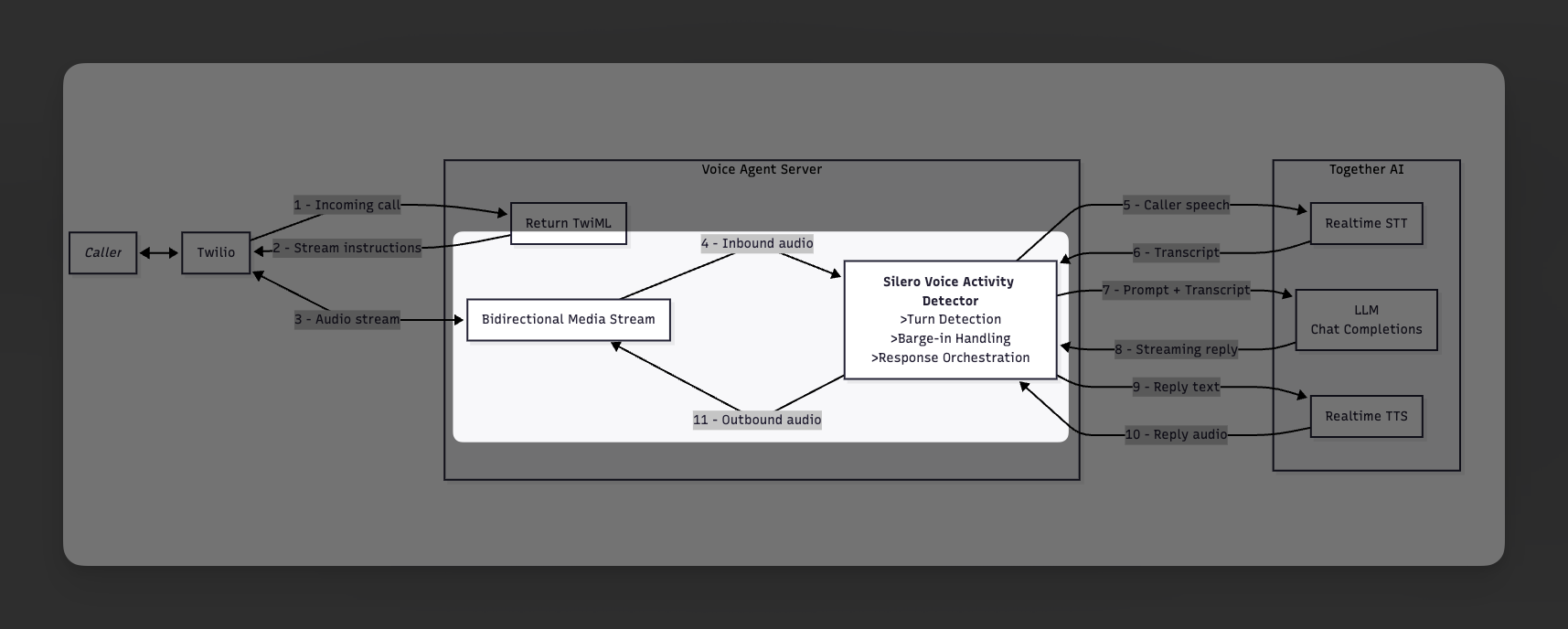
media-stream.ts. This is the per-call state machine. It handles:
- Twilio
connected,start,media,mark, andstopevents. - local voice activity detection.
- turn transitions between
listening,processing, andspeaking. - barge-in by clearing Twilio’s playback buffer and interrupting TTS.
- bounded in-memory conversation history.
media-stream.ts
media-stream.ts
media-stream.ts
import type WebSocket from "ws";
import {
  processConversationTurn,
  RealtimeSttSession,
  RealtimeTtsSession,
  streamGreeting,
  type ChatMessage,
  type PipelineConfig,
} from "./pipeline";
import { SileroVad } from "./vad";

const SPEECH_START_PROB = 0.6;
const SPEECH_END_PROB = 0.35;
const SILENCE_DURATION_MS = 500;
const MIN_SPEECH_MS = 500;
const BARGE_IN_PROB_THRESHOLD = 0.85;
const BARGE_IN_CONSECUTIVE_FRAMES = 3;

const TWILIO_CHUNK_SIZE = 160;

type CallState = "listening" | "processing" | "speaking";

class CallSession {
  private ws: WebSocket;
  private streamSid: string | null = null;
  private callSid: string | null = null;
  private state: CallState = "listening";

  private hasSpeech = false;
  private speechStart: number | null = null;
  private silenceStart: number | null = null;

  private history: ChatMessage[] = [];
  private config: PipelineConfig;
  private sttSession: RealtimeSttSession;
  private ttsSession: RealtimeTtsSession;

  private vad: SileroVad | null = null;
  private vadChain: Promise<void> = Promise.resolve();
  private bargeInFrames = 0;

  private abortFlag = false;

  constructor(ws: WebSocket) {
    this.ws = ws;
    this.config = {
      persona: process.env.PERSONA || "kira",
      sttModel: process.env.STT_MODEL || "openai/whisper-large-v3",
      llmModel:
        process.env.LLM_MODEL || "Qwen/Qwen3.5-9B",
      ttsModel: process.env.TTS_MODEL || "hexgrad/Kokoro-82M",
      ttsVoice: process.env.TTS_VOICE || "af_heart",
    };

    this.sttSession = new RealtimeSttSession(this.config);
    this.ttsSession = new RealtimeTtsSession(this.config, (mulaw8k) => {
      if (this.state !== "processing" && this.state !== "speaking") return;
      this.state = "speaking";
      this.sendMulawToTwilio(mulaw8k);
    });
  }

  handleEvent(msg: Record<string, unknown>) {
    switch (msg.event) {
      case "connected":
        console.log("[Twilio] Connected");
        break;
      case "start":
        this.onStart(msg);
        break;
      case "media":
        this.onMedia(msg);
        break;
      case "mark":
        this.onMark(msg);
        break;
      case "stop":
        console.log(`[Twilio] Stream stopped: ${this.streamSid}`);
        break;
    }
  }

  private onStart(msg: Record<string, unknown>) {
    const start = msg.start as Record<string, unknown>;
    this.streamSid = (start.streamSid as string) || null;
    this.callSid = (start.callSid as string) || null;
    console.log(
      `[Twilio] Stream started -- streamSid=${this.streamSid} callSid=${this.callSid}`,
    );
    console.log(
      `[Config] persona=${this.config.persona} stt=${this.config.sttModel} llm=${this.config.llmModel} tts=${this.config.ttsModel} voice=${this.config.ttsVoice}`,
    );

    this.sttSession.warmup().catch((err) => {
      console.error("[STT-WS] Warmup failed:", err);
    });
    this.ttsSession.warmup().catch((err) => {
      console.error("[TTS-WS] Warmup failed:", err);
    });
    SileroVad.create()
      .then((vad) => {
        this.vad = vad;
      })
      .catch((err) => {
        console.error("[VAD] Failed to load:", err);
      });

    this.sendGreeting();
  }

  private async sendGreeting() {
    try {
      this.state = "speaking";
      this.abortFlag = false;
      this.vad?.resetState();
      this.bargeInFrames = 0;
      await streamGreeting(
        this.config,
        this.ttsSession,
        () => this.abortFlag,
      );

      if (this.abortFlag || this.state !== "speaking") return;
      this.sendMark("greeting-done");
    } catch (err) {
      console.error("[Greeting] Error:", err);
      this.state = "listening";
    }
  }

  private onMedia(msg: Record<string, unknown>) {
    const media = msg.media as Record<string, unknown>;
    const payload = Buffer.from(media.payload as string, "base64");

    if (this.state === "speaking") {
      if (!this.vad) return;
      this.vadChain = this.vadChain
        .then(() => this.vad!.processMulawChunk(payload))
        .then((prob) => {
          if (prob === null || this.state !== "speaking") return;

          if (prob > BARGE_IN_PROB_THRESHOLD) {
            this.bargeInFrames++;
          } else {
            this.bargeInFrames = 0;
          }

          if (this.bargeInFrames >= BARGE_IN_CONSECUTIVE_FRAMES) {
            console.log(
              `[Barge-in] Caller interrupted (VAD prob=${prob.toFixed(2)}, ${this.bargeInFrames} frames)`,
            );
            this.bargeInFrames = 0;
            this.abortFlag = true;
            this.ttsSession.interrupt();
            this.sendClear();
            this.state = "listening";
            this.hasSpeech = true;
            this.speechStart = Date.now();
            this.silenceStart = null;
            this.vad!.resetState();
            this.sttSession.clearAudio();
          }
        })
        .catch(() => {});
      return;
    }

    if (this.state !== "listening") return;

    this.sttSession.sendAudio(payload);

    if (!this.vad) return;
    this.vadChain = this.vadChain
      .then(() => this.vad!.processMulawChunk(payload))
      .then((prob) => {
        if (prob === null || this.state !== "listening") return;

        if (prob > SPEECH_START_PROB) {
          this.silenceStart = null;
          if (!this.hasSpeech) {
            this.hasSpeech = true;
            this.speechStart = Date.now();
            console.log(`[VAD] Speech started (prob=${prob.toFixed(2)})`);
          }
        } else if (prob < SPEECH_END_PROB && this.hasSpeech) {
          if (!this.silenceStart) {
            this.silenceStart = Date.now();
          } else {
            const silenceDuration = Date.now() - this.silenceStart;
            const speechDuration = this.speechStart
              ? Date.now() - this.speechStart
              : 0;

            if (
              silenceDuration > SILENCE_DURATION_MS &&
              speechDuration > MIN_SPEECH_MS
            ) {
              console.log(
                `[VAD] End of speech (silence=${silenceDuration}ms, speech=${speechDuration}ms)`,
              );
              this.triggerProcessing();
            }
          }
        }
      })
      .catch(() => {});
  }

  private onMark(msg: Record<string, unknown>) {
    const mark = msg.mark as Record<string, unknown>;
    const name = mark?.name as string;
    console.log(`[Twilio] Mark: ${name}`);

    if (name === "greeting-done" || name === "turn-done") {
      if (this.state === "speaking") {
        this.state = "listening";
        this.vad?.resetState();
        this.bargeInFrames = 0;
        console.log("[State] -> listening");
      }
    }
  }

  private triggerProcessing() {
    this.state = "processing";
    this.abortFlag = false;
    console.log("[State] -> processing");

    this.hasSpeech = false;
    this.silenceStart = null;
    this.speechStart = null;

    this.runPipeline();
  }

  private async runPipeline() {
    try {
      const result = await processConversationTurn(
        this.sttSession,
        this.history,
        this.config,
        this.ttsSession,
        () => this.abortFlag,
      );

      if (result) {
        this.history.push({ role: "user", content: result.transcript });
        this.history.push({ role: "assistant", content: result.reply });

        if (this.history.length > 40) {
          this.history = this.history.slice(-40);
        }
      }

      if (this.state === "speaking") {
        this.sendMark("turn-done");
      } else {
        this.state = "listening";
        this.vad?.resetState();
        this.bargeInFrames = 0;
        console.log("[State] -> listening");
      }
    } catch (err) {
      console.error("[Pipeline] Error:", err);
      this.state = "listening";
      this.vad?.resetState();
      this.bargeInFrames = 0;
    }
  }

  private sendMulawToTwilio(mulaw: Uint8Array) {
    if (!this.streamSid || this.ws.readyState !== 1) return;

    for (let i = 0; i < mulaw.length; i += TWILIO_CHUNK_SIZE) {
      const chunk = mulaw.slice(i, i + TWILIO_CHUNK_SIZE);
      this.ws.send(
        JSON.stringify({
          event: "media",
          streamSid: this.streamSid,
          media: {
            payload: Buffer.from(chunk).toString("base64"),
          },
        }),
      );
    }
  }

  private sendMark(name: string) {
    if (!this.streamSid || this.ws.readyState !== 1) return;
    this.ws.send(
      JSON.stringify({
        event: "mark",
        streamSid: this.streamSid,
        mark: { name },
      }),
    );
  }

  private sendClear() {
    if (!this.streamSid || this.ws.readyState !== 1) return;
    this.ws.send(
      JSON.stringify({
        event: "clear",
        streamSid: this.streamSid,
      }),
    );
  }

  cleanup() {
    this.abortFlag = true;
    this.sttSession.close();
    this.ttsSession.close();
    console.log(`[Twilio] Connection closed for call ${this.callSid}`);
  }
}

export function handleMediaStream(ws: WebSocket) {
  const session = new CallSession(ws);

  ws.on("message", (raw) => {
    try {
      const msg = JSON.parse(raw.toString());
      session.handleEvent(msg);
    } catch (err) {
      console.error("[WS] Failed to parse message:", err);
    }
  });

  ws.on("close", () => session.cleanup());
  ws.on("error", (err) => console.error("[WS] Error:", err));
}
Step 7: Add the HTTP server and TwiML endpoint
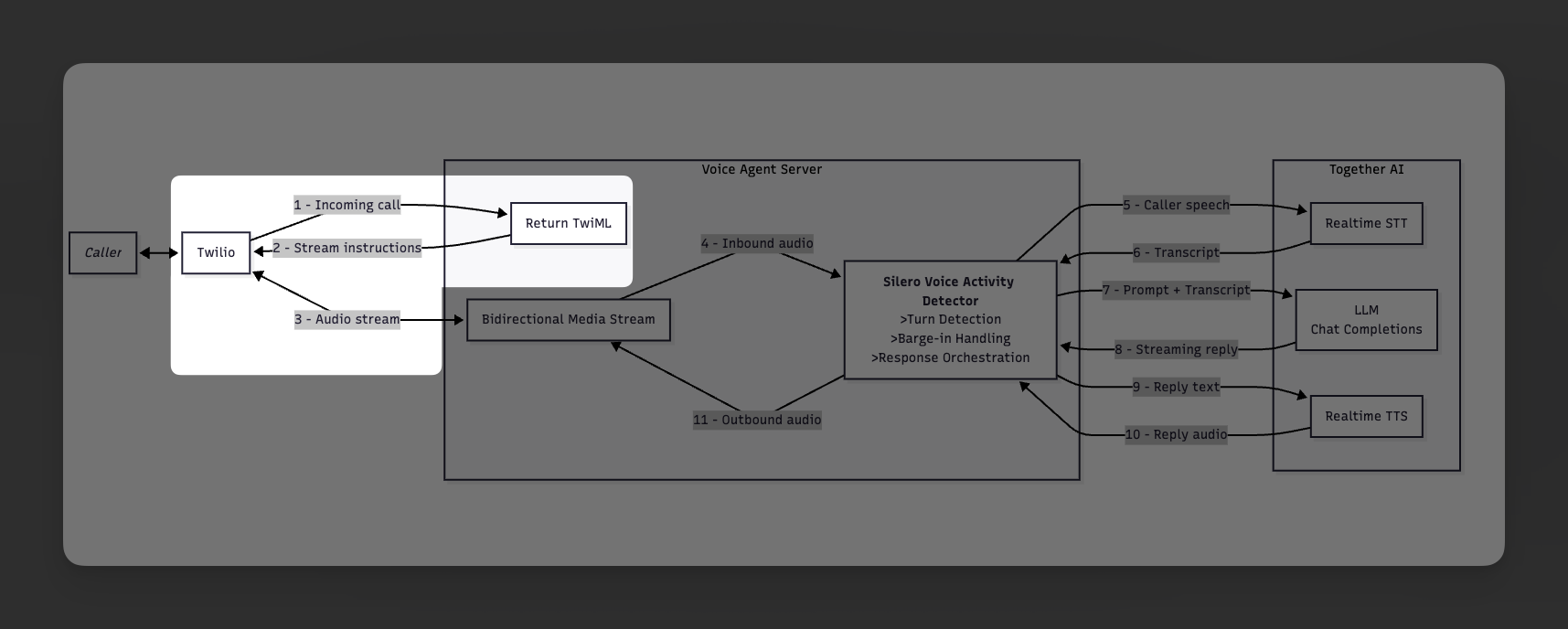
server.ts. This file serves two purposes:
POST /twimlreturns TwiML that tells Twilio to open a bidirectional Media Stream to your server.- the
WebSocketServeraccepts those/media-streamconnections and hands them tohandleMediaStream().
server.ts
server.ts
server.ts
import "dotenv/config";
import express from "express";
import { createServer } from "http";
import { WebSocketServer } from "ws";
import { handleMediaStream } from "./media-stream";
import { SileroVad } from "./vad";

const app = express();
const PORT = parseInt(process.env.PORT || "3001");

app.post("/twiml", (req, res) => {
  const host = req.headers.host || "localhost";
  const protocol =
    req.headers["x-forwarded-proto"] === "https" ? "wss" : "ws";
  const wsUrl = `${protocol}://${host}/media-stream`;

  console.log(`[TwiML] Incoming call -> streaming to ${wsUrl}`);

  res.type("text/xml");
  res.send(
    `<?xml version="1.0" encoding="UTF-8"?>
<Response>
  <Connect>
    <Stream url="${wsUrl}" />
  </Connect>
</Response>`,
  );
});

app.get("/health", (_req, res) => {
  res.json({ status: "ok" });
});

const server = createServer(app);

const wss = new WebSocketServer({ server, path: "/media-stream" });
wss.on("connection", (ws) => {
  console.log("[Server] New Twilio Media Stream connection");
  handleMediaStream(ws);
});

SileroVad.warmup().catch((err) => {
  console.error("[VAD] Warmup failed:", err);
});

server.listen(PORT, () => {
  console.log("");
  console.log("  ┌──────────────────────────────────────────┐");
  console.log("  │  Twilio Voice Agent Server               │");
  console.log("  ├──────────────────────────────────────────┤");
  console.log(`  │  Local:     http://localhost:${PORT}        │`);
  console.log("  │  TwiML:     POST /twiml                  │");
  console.log("  │  WebSocket: /media-stream                │");
  console.log("  ├──────────────────────────────────────────┤");
  console.log("  │  Next steps:                             │");
  console.log(`  │  1. ngrok http ${PORT}                      │`);
  console.log("  │  2. Set Twilio webhook to /twiml         │");
  console.log("  │  3. Call your Twilio number              │");
  console.log("  └──────────────────────────────────────────┘");
  console.log("");
});
Step 8: Check your project layout
At this point your project should look like this:twilio-voice-agent/
.env
package.json
tsconfig.json
server.ts
media-stream.ts
pipeline.ts
vad.ts
audio-convert.ts
silero_vad.onnx
Step 9: Start the server
Run:Shell
npm run dev
  ┌──────────────────────────────────────────┐
  │  Twilio Voice Agent Server               │
  ├──────────────────────────────────────────┤
  │  Local:     http://localhost:3001        │
  │  TwiML:     POST /twiml                  │
  │  WebSocket: /media-stream                │
  ├──────────────────────────────────────────┤
  │  Next steps:                             │
  │  1. ngrok http 3001                      │
  │  2. Set Twilio webhook to /twiml         │
  │  3. Call your Twilio number              │
  └──────────────────────────────────────────┘
Step 10: Expose the app and connect Twilio
In another terminal:Shell
ngrok http 3001
https:// forwarding URL and configure your Twilio number:
- Open the Twilio Console and select your phone number.
- Under voice configuration, set the incoming call webhook to
https://your-ngrok-domain/twiml. - Use HTTP
POST. - Save the number configuration.
/twiml, receive a <Connect><Stream> response, and open a bidirectional Media Stream back to your /media-stream endpoint.
Step 11: Call the number
Dial your Twilio number from any phone. The expected flow is:- Twilio connects the call and opens the WebSocket.
- The server warms up STT, TTS, and VAD.
- The assistant plays a short greeting.
- The caller speaks.
- Local VAD decides when the caller has stopped.
- The server commits the buffered STT stream.
- The chat model starts streaming a reply.
- Completed sentences are sent immediately to TTS.
- TTS audio is converted back to
audio/x-mulawand played to the caller. - If the caller interrupts, the server sends Twilio a
clearevent and starts listening again.
How the low-latency path works
This architecture stays fast because it avoids unnecessary waits:- caller audio streams into STT continuously instead of being uploaded after the turn.
- turn detection happens locally with Silero VAD, so there is no extra network hop to decide when to process.
- chat completions stream token by token.
- TTS starts on each completed sentence instead of waiting for the full reply.
- Twilio playback can be interrupted immediately with a
clearevent.
Tuning the voice experience
The behavior is mostly controlled by a few thresholds inmedia-stream.ts:
SPEECH_START_PROB.SPEECH_END_PROB.SILENCE_DURATION_MS.MIN_SPEECH_MS.BARGE_IN_PROB_THRESHOLD.BARGE_IN_CONSECUTIVE_FRAMES.