

The CLI examples on this page use these placeholders, which you should replace with your own endpoint/deployment IDs:
- Endpoint:
ep_abc123. - Source deployment:
dep_source123. - Target deployment:
dep_target456.
When to use rollouts
Use a rollout instead of editing the traffic split by hand when you’re migrating a deployment on live traffic. Rollouts are especially useful when you want to:- Ship a new model version or engine config: Canary rollouts shift traffic gradually from the old deployment to the new one, allowing you to monitor the new deployment’s performance before fully committing to it.
- Validate a change under production traffic: Use metric gates to pause the rollout automatically when the new deployment is worse than the original.
- Recover from a bad release: Canceling freezes traffic where it is, allowing you to walk the change back safely with a reverse rollout.
- Keep a record of the migration: Each rollout records its steps, state changes, and pause/cancel reasoning in the endpoint’s rollout history.
Requirements
Before starting a rollout, you must create two eligible deployments under the same endpoint:-
Source: The deployment you’re migrating away from. The source must:
- Be in the
READYdeployment state. - Have a positive weight in the endpoint’s traffic split. A rollout only shifts the source’s share of the traffic: any other deployments in the split keep serving their shares, and the target takes over the source’s slot when the rollout completes.
- Not be part of a shadow experiment or A/B test.
- Be in the
-
Target: The deployment you’re rolling out to. The target must:
- Be in the
READYorSTOPPEDdeployment state. The rollout restarts a stopped target when it scales it up. - Not be receiving 100% of the traffic on the endpoint.
- Not be part of a shadow experiment or A/B test.
- Belong to a project in good billing standing.
- Be in the
Choose a rollout strategy
The rollout strategy you choose determines how traffic moves from the source deployment to the target. Pick exactly one strategy per rollout: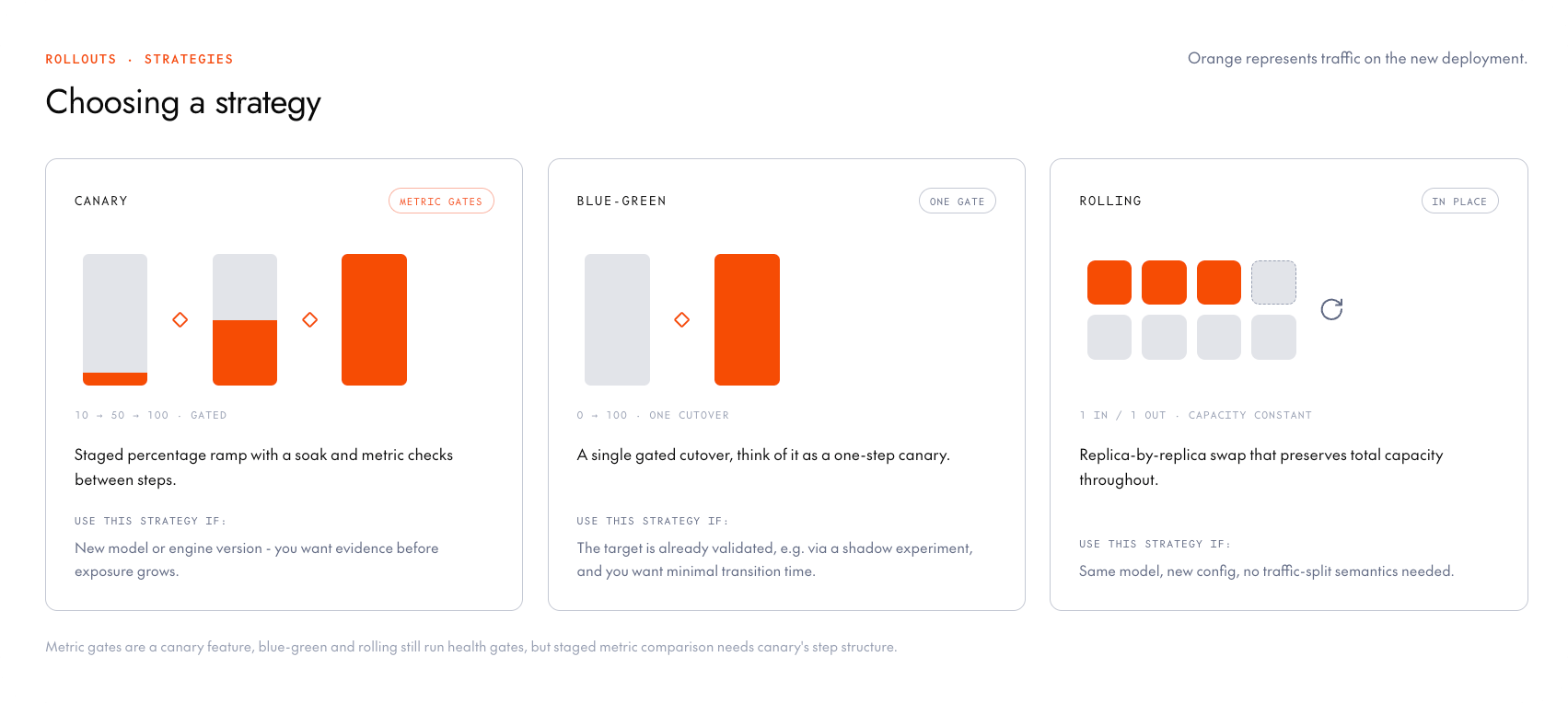
Start a rollout
- CLI
- Console
The If the target is already serving some traffic (for example, after a canceled rollout), your custom ladder must start above the share the target is already serving. When in doubt, omit See Gate rollouts with metrics for the full list of supported metrics and configuration options.
rollout command creates a rollout and starts shifting traffic from the source to the target. Pass the target deployment (ID or name) and a strategy flag.- Source: The deployment currently serving the traffic you’re migrating. A rollout only shifts traffic that’s already routed to the source, so the source must be referenced in the endpoint’s traffic split. On a single-deployment endpoint this is automatic. A rollout against a source that isn’t referenced in the traffic split starts, but won’t shift any traffic.
- Target: The new deployment you’re rolling out to. It must be
READYorSTOPPEDwhen you start, so if you just created it with replicas, wait for it to reachREADY. The rollout scales up a stopped target and waits for its replicas before it shifts traffic. - Inactivity timeouts disabled: Neither deployment can have an inactivity timeout enabled. A deployment that auto-stops on idleness can’t also carry a rollout, so create rejects the pair and names the offending deployment. Set the timeout to
0on both, and turn it back on after the rollout completes. - Billing standing: The target deployment’s project must be in good billing standing to create the rollout, start it, and continue scaling the target up during the run. If billing lapses mid-run, the rollout parks with
ENTITLEMENT_LAPSEDbefore the next target scale-up. Shrink and recovery paths (for example aborting) are not blocked.
Canary
Pass--canary. To customize the ladder, set the traffic percentages with --steps and the soak between steps with --interval:--steps and the platform picks steps that fit the live traffic.You can also configure a canary rollout to evaluate live metrics after each step, pausing automatically instead of advancing when the target regresses. Attach a metric gate with the --metric* flags:Blue-green
Pass--blue-green:Rolling
Pass--rolling:Monitor progress
- CLI
- Console
Retrieve the rollout with To follow traffic-split transitions event by event, list the endpoint’s events with
get, passing the rollout ID (rol_...) printed under Active Rollout when you started it. You can also pass the endpoint ID to print the endpoint summary, which includes the active rollout’s ID, state, strategy, and progress.--subject-id set to the rollout ID. Traffic-shift rows include old_traffic_percent and new_traffic_percent.Step status on retrieve
When you retrieve a rollout,status.steps lists one row per step with its state:
started_at is set only when the step actually ran.
Manage a running rollout
You can pause, resume, promote, and cancel a rollout using the CLI or console. An endpoint has at most one active rollout, so the CLI accepts any of these identifiers: the endpoint or deployment ID or name, or the rollout ID (rol_...).
Pause and resume
- CLI
- Console
To manually pause a rollout, pass
--pause (and optionally a reason). You can resume it later with --resume:The platform may pause a rollout automatically, which sets the rollout state to
SYSTEM_PAUSED (for example on a failed metric gate or when capacity runs out). See Troubleshooting for the pause causes and how to respond to each.Promote a rollout
- CLI
- Console
To promote a rollout, immediately shifting all traffic to the target, pass
--promote:Cancel a rollout
Canceling a rollout freezes the current traffic split wherever it is. Both deployments keep the weights that were serving at cancel time. A target that isn’t serving traffic may be left at weight0 or removed from the split.
After the cancellation completes, both deployments keep serving at those frozen shares (rollout events describe this as traffic frozen at the current split). This leftover state, the frozen pair, keeps serving until you either edit the traffic split to put all traffic on one deployment or run the rollout in reverse.
Canceling before any traffic has shifted (a 0% split) leaves the target deployment running with no traffic. If you no longer need the target, scale it to zero or delete it once the cancellation is finished.
- CLI
- Console
To cancel a rollout, pass
--cancel and optionally a reason:Roll back to the source
There is no separate rollback operation. To move traffic back, run another rollout with the roles reversed.After a completed rollout
This works like any other rollout. The deployment now serving traffic becomes the source, and the old source is the target (any stopped deployment is an eligible target for the new rollout).After a canceled rollout
If you canceled a rollout and the endpoint is still serving from the frozen pair, roll back by running a new rollout with the roles reversed. Any strategy works. The platform adapts the rollout to the frozen state:- Replica counts:
--final-target-replicasdefaults to the pair’s combined replica count (the capacity serving all of the endpoint’s traffic today), not only the source’s count. - Canary steps: For a canary, the default ladder skips the steps the new target has already passed. For example, if the cancel froze the target at 40%, the rollout runs only the 50% and 100% steps. A custom ladder must start above the frozen share, the same rule as when starting any canary.
Delete a rollout
You can delete a rollout that hasn’t started yet or has finished (completed or canceled). Deleting the rollout record doesn’t change the traffic split it left behind. To stop serving both deployments of a frozen pair, edit the traffic split so one deployment carries all of the traffic, then scale the other to zero if you no longer need it.- CLI
- Console
Use
rm to delete a rollout, passing the rollout ID (rol_...):Rollout states
A rollout can pass through the following states:Limitations
While a rollout is in any non-terminal state (includingPENDING and paused rollouts), it locks the endpoint resources it depends on:
- Traffic split edits are blocked: Editing the endpoint’s traffic split returns a
409until the rollout completes, is canceled, or is deleted. To check for an active rollout before editing, retrieve the endpoint: get, update, and list responses include the active rollout’s ID asactiveRolloutId(omitted when there is none). - One active rollout per endpoint: Creating a second rollout returns a
409, and the error names the rollout that blocks it and its state. APENDINGrollout left behind by a failed start also occupies the slot. - The source and target can’t be stopped or deleted: Deleting either deployment returns a
409, and stopping one returns a400. The console disables Stop and Delete on both deployments, along with the endpoint’s Stop all deployments. - The source and target can’t join experiments: A deployment can only serve one traffic role at a time, so adding either deployment to a shadow experiment or A/B test is rejected while the rollout is active.
- Replica bounds stay editable, with one caveat: Lowering the target’s
--max-replicasbelow what the current rollout step requires pauses the rollout with aPOLICY_INFEASIBLEerror.
Troubleshooting
When the platform pauses a rollout (SYSTEM_PAUSED), the rollout’s status.condition carries a typed category and a human-readable message.
Recoverable pauses often clear on their own: the platform retries the failed process every 15 minutes for up to 3 hours before leaving the rollout paused for your action. Operator pauses (
PAUSED) never auto-resume.
Here are some other common issues and their solutions:
- New replicas are slow to take on traffic: Each step brings up new replicas, each of which requires a cold start. For canary rollouts, set the
--intervallong enough for the replica to warm up before the gate starts sampling. - Create or start returns
409: The error message names the rollout or deployment that blocks it. If it names a rollout, the endpoint already has an active one, so finish or cancel it before you create another. If it names a deployment, that deployment is in a state that doesn’t allow a rollout, so wait for it to reach one of the states listed in Requirements. - Preview warns with
START_WILL_REJECT: The rollout can be created, but starting it would fail while the deployments keep their current traffic shape (for example, the target already serves the pair’s whole share). Follow the fix in the warning message, then start the rollout again. - Create fails or warns because a custom canary ladder starts at or below the target’s share: Create returns a
400when the first step is below the share of traffic the target already serves, and preview warns withFIRST_STEP_AT_SEEDwhen the first step exactly equals that share (creating may work, but starting can still fail). Raise the first step above the target’s share, or omit--steps(leave Canary steps on auto in the console) so the platform picks steps that fit. - Create returns
400for a metric gate: The gate’s threshold or regression budget could never pass, or could never fail, so the gate would be meaningless. Fix the operator and value so a realistic reading can pass and a bad one can fail. See Supported metrics for each metric’s unit. - Preview shows a landing max above the target’s current max replicas: So the target can hold the endpoint’s whole traffic, the rollout raises the target’s max replicas to cover the larger of the two deployments (or
--final-target-replicas, if higher). The raised bound stays after the rollout ends. Lower it afterward if you don’t want to keep it. - Preview shows a landing minimum above your
--final-target-replicas: A rollout never lowers a target’s own min replicas, so the completed target keeps the higher of the two values. To land at the final you declared, lower the target’s min replicas first. - Preview warns with
FINAL_BELOW_SOURCE_MIN: You asked for fewer final target replicas than the source’s minimum, so the endpoint ends the rollout with a lower autoscaling floor than it has today. This is allowed. Raise--final-target-replicasif you want to keep the source’s floor. - Updating the traffic split returns
409: The rollout controls the endpoint’s traffic split in every non-terminal state (including pending or paused). Complete, cancel, or delete the rollout before editing traffic weights. In the console, Traffic weight is also disabled on New deployment and Edit while a rollout is active. - Stop or delete is disabled on a deployment in the console: The deployment is the source or target of an active rollout. Complete or cancel the rollout first. Stop all deployments on the endpoint is also disabled while any rollout is active.
- Create returns
400after naming a shadow experiment target: The source or target is registered as a shadow experiment target. Pass--detachto detach a shadow or A/B target automatically. A shadow source must be removed by hand. rolloutreportsCreated rollout ... but failed to start it: Creation succeeded but the start call failed, so aPENDINGrollout now occupies the endpoint’s single active-rollout slot. Run the cleanup command the CLI prints (tg endpoints rm rol_...), fix the underlying cause, then create the rollout again.- An error says the project
is not in good standing: The same billing check runs when you create a rollout, when you start it, and before each step scales up the target (where a failure pauses the rollout withENTITLEMENT_LAPSED). Resolve the billing issue on the project, then retry or resume. - An error says only
internal errororFailed Precondition: Some platform failures surface as a generic message with no further detail. Contact support with the rollout ID and the time of the failure.
Next steps
Gate rollouts with metrics
Pause a canary automatically when the target regresses on live metrics.
Create a deployment
Create the source and target deployments a rollout shifts between.